Building a Multi‑Agent Research Pipeline addresses critical bottlenecks in modern application development where manual information gathering consumes significant development time. Research workflows involving data validation, source verification, and report compilation create delays in product development cycles. Traditional automation approaches fail because research tasks require contextual decision-making and adaptive information processing capabilities.
Updated October 2026: I rebuilt this tutorial to match current n8n. The “Manual Chat Trigger” node was replaced by the Chat Trigger node (n8n 1.24), the SerpApi (Google Search) tool node is deprecated as of n8n 2.35 in favour of SerpApi’s official community node, and the old pricing and example output were out of date. The workflow below uses the HTTP Request Tool for search, which works with any search API and does not depend on a node that may be removed. I also removed claims I couldn’t back up (like “research time drops from hours to minutes”) and replaced the invented example output with an honest description of what the pipeline returns.
n8n’s AI Agent nodes (built on LangChain under the hood, which is why this guide’s original title mentions it) let you chain agents that each do one job: search, summarize, and check. You build it visually, with no custom code. The result is a pipeline that takes a research question and returns a structured report with sources and a verification pass, which you can plug into a knowledge base, competitive-analysis tool or Slack bot.
What is a Multi‑Agent Research Pipeline?
A multi-agent research pipeline distributes research tasks across specialized AI agents that excel at specific functions. Each agent focuses on one aspect of the research process while passing processed data to subsequent agents.
- Search Agent executes web queries using search APIs and retrieves current information from multiple sources. It analyzes research queries and formulates effective search strategies based on the topic and required information depth.
- Summarization Agent processes raw search results into structured insights. It extracts key facts, identifies trends, and organizes information into readable summaries while maintaining source accuracy.
- Fact-Checking Agent validates summarized content against original sources. It identifies unsupported claims, factual inconsistencies, and missing context to prevent information errors from propagating through your application.
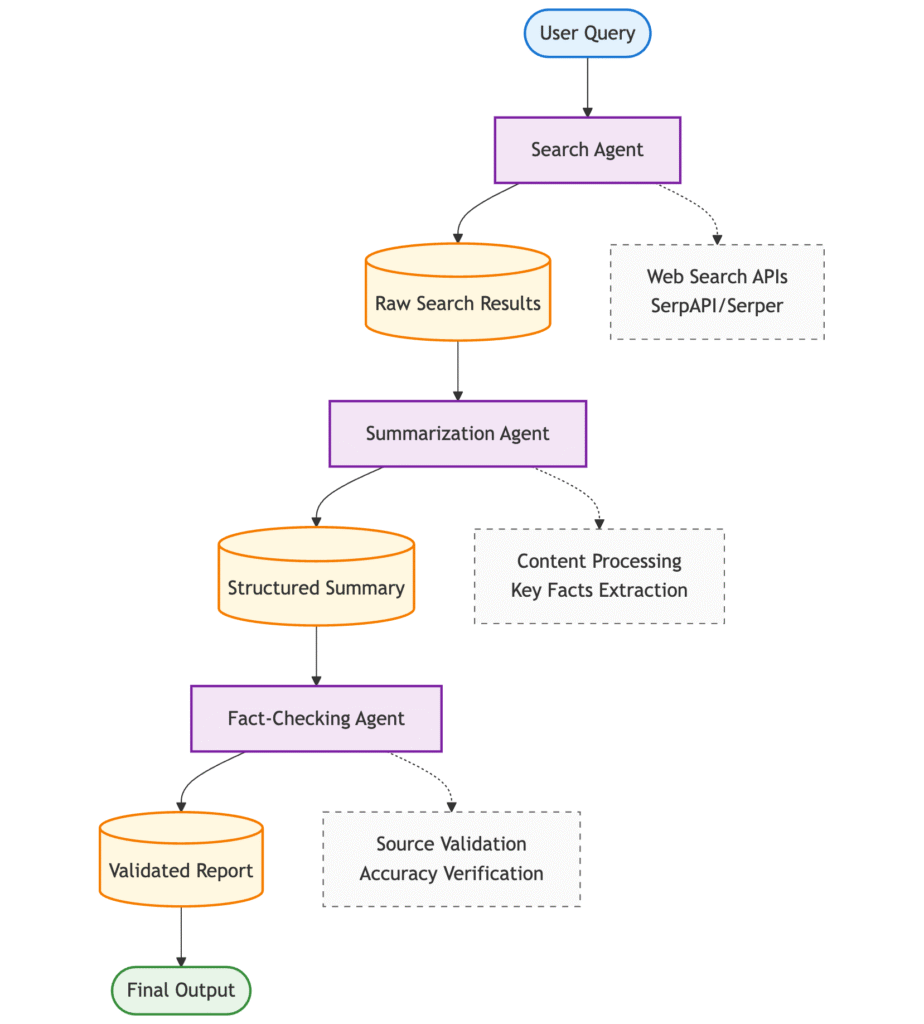
Splitting the work across agents has real advantages over one big prompt. Each agent gets a short, focused system prompt and only the tools it needs, which makes behaviour easier to predict and debug. You can tune or swap one stage (a better search source, a stricter checker) without touching the others. And because each stage’s output is visible in n8n’s execution log, you can see exactly where a bad answer came from. The trade-off is cost and latency: three model calls cost more and take longer than one, so use this pattern when the quality gain justifies it.
Two ways to wire multiple agents in n8n
- Sequential pipeline (this guide): stage 1’s output feeds stage 2, which feeds stage 3. It is simple, predictable and easy to debug because the order is fixed by you. This fits research, where the steps really are always search, then summarize, then verify.
- Orchestrator with sub-agents: n8n’s AI Agent Tool node lets one primary agent call other agents as tools and decide for itself which to use and when. It is more flexible, but less predictable and harder to debug. Prefer it when the sequence of steps genuinely varies per request. For the general trade-off, see workflows vs agents in our agentic AI guide.
Prerequisites to Build the Pipeline
This section covers the credentials you need. It assumes you already have a running n8n instance (version 2.x) and basic familiarity with the AI Agent node.
OpenAI API configuration
All three agents use an OpenAI chat model. In the OpenAI platform, create an API key and make sure the account has billing or credit enabled (a key without credit returns quota errors). Then in n8n, go to Credentials → Add credential → OpenAI, paste the key and save. See n8n’s OpenAI credentials documentation for details.
We use a small, inexpensive chat model for every agent. Summarizing and cross-checking provided text does not need a flagship model, and three calls per question add up. Model names change often, so pick whichever current small OpenAI model your account offers, and upgrade only the stage where you measure a quality problem.
Web search API
The Search Agent needs a way to query the web. The easiest approach that won’t break when n8n changes its built-in nodes is the HTTP Request Tool, which lets an agent call any REST API. Two good options:
- Serper (serper.dev): a Google Search API that advertises 2,500 free queries on signup with no credit card. Fast and inexpensive, and the one we use below. Authentication is an
X-API-KEYheader. - SerpApi (serpapi.com): broader coverage of search engines. As of this writing it has a free plan with 250 searches per month, then paid plans starting at $25 per month for 1,000 searches ($75 for 5,000). n8n’s own SerpApi tool node is deprecated; use SerpApi’s verified community node, or call its API through the HTTP Request Tool.
Other search providers (Tavily, Brave Search, Perplexity) also have n8n integrations and can be swapped in; the agent only cares that it has a tool named something like “web_search”. Prices change frequently, so check each provider’s pricing page before you commit.
Approximate costs
| Service | While building | In production |
|---|---|---|
| OpenAI (small chat model) | Cents per test run | Scales with number of questions and report length; set a monthly spending limit |
| Serper | 2,500 free queries on signup | Check Serper’s pricing page; one research question usually needs one to a few searches |
| SerpApi (alternative) | 250 free searches/month | From $25/month for 1,000 searches |
| n8n | Self-hosted: free. Cloud: plan-based | n8n Cloud plans include a monthly execution allowance; self-hosting has no per-execution fee |
If you doesn’t have a n8n instance, you can refer this guide to setup one in your google cloud account: Deploy N8n on Google Cloud
Step 1: Configure the Research Input Trigger
Start with the input that captures the research question.
Add a Chat Trigger
- Create a new workflow in n8n.
- Add a Chat Trigger node and rename it “Research Query Trigger”. (In older guides this is called the Manual Chat Trigger; it was replaced by the Chat Trigger in n8n 1.24.)
- Leave Make Chat Publicly Available turned off while you build. You test through n8n’s built-in chat panel.
The Chat Trigger passes the user’s message along in the chatInput field. Later, if you want to expose the pipeline to other people, you can make the chat public (hosted or embedded) with authentication, or replace the trigger with a Webhook.
Step 2: Build the Search Agent
Create the component that turns a research question into search queries and gathers results.
Add the AI Agent node
- Add an AI Agent node connected to the trigger and rename it “Search Agent”.
- Set Source for Prompt to Define below and the prompt text to
{{ $json.chatInput }}. - In Options, add a System Message: “You are a research specialist. Use the web_search tool to find current, accurate information about the user’s question. Run more than one search if needed. Prefer credible and recent sources. For every fact you report, include the source title and URL. Do not state anything you did not find in the search results.”
- Set Max Iterations to a modest number (for example 5) so a confused agent can’t loop and burn tokens.
The last two instructions matter. Asking for URLs on every fact is what makes the later fact-check possible, and forbidding unsupported claims reduces hallucination. Note that n8n’s AI Agent node is a tools agent: it requires at least one tool connected, which is the search tool we add in the next step.
Attach a chat model
- Click + under the Chat Model connector and select OpenAI Chat Model.
- Select your OpenAI credential and choose a small current model.
- Under Options, set a low Sampling Temperature (around 0.2) for consistent, factual behaviour.
Step 3: Implement Search Tools
Give the Search Agent a tool. We use the HTTP Request Tool with Serper.
Add an HTTP Request Tool for Serper
First create a credential: Credentials → Add credential → Header Auth, with Name X-API-KEY and Value your Serper API key (see n8n’s HTTP Request node documentation). Then, under the Tools connector of the Search Agent, add an HTTP Request Tool and configure it:
- Description: “Search the web with Google. Input is a search query. Returns titles, snippets and URLs.” (The agent reads this to decide when to call the tool, so be specific.)
- Method:
POST - URL:
https://google.serper.dev/search - Authentication: Generic Credential Type, Header Auth, and select the credential you just created.
- Send Body: on, JSON body:
{"q": "{{ $fromAI('query', 'The search query', 'string') }}", "num": 10}
$fromAI() is how n8n lets the model fill in a tool parameter at runtime: the agent decides what to search for and the expression is replaced with its value. If you prefer SerpApi, Tavily or Brave, add their node (or an HTTP Request Tool pointing at their API) in the same place. Nothing else in the pipeline changes.
The tool connects through the ai_tool connection type, so the agent decides on its own when to call it.
Step 4: Create the Summarization Agent
This stage turns raw search output into a structured summary. It needs no tools, and n8n’s AI Agent node requires at least one connected tool, so we use a Basic LLM Chain node here (an “agent” with no tools is just a model call). If you later give this stage a tool, switch it to an AI Agent node.
- Add a Basic LLM Chain node after the Search Agent and name it “Summarizer”.
- Set Source for Prompt to Define below, with this Prompt (User Message):
Create a clear summary from these search results. Focus on key facts, recent developments, statistics and main conclusions. Keep the source URL next to each fact. Search results: {{ $('Search Agent').item.json.output }} - In Chat Messages, add a System message: “You are an information synthesizer. Summarize only what appears in the search results. Keep source URLs attached to claims. If sources disagree, say so instead of picking one.”
- Attach an OpenAI Chat Model with a low temperature (around 0.1).
One detail to watch: an AI Agent node returns its answer in a field called output, while a Basic LLM Chain returns it in text. If your expressions come back empty, open the node’s output panel and use whichever field name you see.
Step 5: Implement Fact-Checking Agent
This stage audits the summary against the sources it was built from. Add another Basic LLM Chain named “Fact Checker” after the Summarizer, with an OpenAI Chat Model at temperature 0, and this prompt:
Compare the summary below against the original search results.
List: (1) claims that are supported, (2) claims that are NOT supported by the
search results, (3) contradictions, and (4) missing context. Quote the supporting
passage for each supported claim.

Summary:
{{ $('Summarizer').item.json.text }}

Original search results:
{{ $('Search Agent').item.json.output }}
System message: “You are a fact-checking specialist. Be strict. If a claim is not explicitly supported by the provided search results, mark it unsupported.”
What this stage can and can’t do: it checks that the summary is faithful to the retrieved text. It cannot tell you whether the search results themselves are true, current or unbiased, because it never leaves that text. Treat the pipeline’s output as a well-organised first draft with sources to verify, not as ground truth.
Step 6: Compile Final Research Report
Add an Edit Fields (Set) node (called just “Set” in older n8n versions) after the Fact Checker to combine everything into one structured result:
query:{{ $('Research Query Trigger').item.json.chatInput }}searchResults:{{ $('Search Agent').item.json.output }}summary:{{ $('Summarizer').item.json.text }}factCheck:{{ $('Fact Checker').item.json.text }}timestamp:{{ $now.toISO() }}
This gives you structured JSON suitable for an API response, a database row, or a Slack or email message. Because the sources travel with each claim, the final report can cite them.
Testing and Results
Test in n8n’s chat panel before connecting anything downstream.
Testing procedure
- Click Open chat on the canvas and send a research question about a topic you know well, so you can judge the output.
- Open each agent node’s Logs to see what it was given, which tools it called, and what it returned.
- Check that every claim in the summary has a URL, and open two or three of those URLs to confirm they say what the summary claims.
Good test questions are specific and time-sensitive, for example “What changed in the most recent release of [a tool you use]?” or “Summarize recent coverage of [a topic in your field]”. Try one ambiguous question and one with no good answer, to see how the pipeline behaves when sources are thin.
What the output looks like
The pipeline returns one JSON object with the fields set above. The shape is below, with placeholders instead of invented content, because the text depends entirely on your query and what the search API returns that day:
{
  "query": "<the research question>",
  "searchResults": "<Search Agent's findings, with source titles and URLs>",
  "summary": "<Summarizer's structured summary, URLs kept next to claims>",
  "factCheck": "<Fact Checker's list of supported / unsupported claims>",
  "timestamp": "<ISO timestamp of the run>"
}
Quality checklist
A good run has:
- Specific, dated information with source URLs you can open.
- Numbers given with context (what was measured, when, by whom).
- Disagreements between sources flagged rather than smoothed over.
- A fact-check section that actually quotes supporting passages.
Common problems:
- Generic answers that ignore the specifics of the question (improve the Search Agent’s system message and ask for several searches).
- Outdated information (add a recency hint to the search call, such as a time-range parameter your search API supports).
- Summaries containing claims no source supports (tighten the Summarizer’s prompt and check the Fact Checker is catching them).
- Fact-check that rubber-stamps everything (make its prompt stricter and require quoted evidence).
Performance: latency is the sum of three model calls plus the search call, usually tens of seconds rather than a few. Measure it in the Executions view for your own setup, track token usage per agent, and cap output length if costs creep up.
Security and Reliability Notes
- Search results are untrusted input. A web page can contain text written to manipulate an AI (“ignore your instructions and…”), a prompt-injection attack. Keep the agents’ abilities narrow: this pipeline only reads and writes text, which limits the damage, but if you later add tools that send email, write to databases or call internal APIs, do not let an agent that reads web content trigger them without human approval.
- Cap the loops. Set Max Iterations on the Search Agent, and set spending limits in your OpenAI and search-API accounts.
- Add error handling. Create a small workflow starting with an Error Trigger that notifies you, and set it as the Error Workflow for this pipeline. Turn on Retry On Fail for the search and model nodes to absorb transient API errors.
- Keep a human in the loop for decisions. The output is research support. Anything that drives a real decision (a purchase, a public claim, a medical or legal action) should be checked against the primary sources by a person.
Conclusion
A sequential multi-agent pipeline in n8n is a practical way to automate research drafts: one agent gathers sources, one condenses them, and one checks the summary against what was actually found. Its strengths are modularity (swap the search API or tighten a single prompt without touching the rest), transparency (every stage is logged) and no custom code. Its limits are cost (three model calls per question), the fact that the checker only verifies consistency with retrieved text, and the need for human review of anything important.
From here you can pipe the output to Slack or email, store reports in a database, add a vector store so the pipeline can also draw on your own documents (see our RAG knowledge-base assistant in n8n), or restructure the flow as an orchestrator that uses the AI Agent Tool node when the steps vary per question.
FAQs
How do I choose between Serper and SerpApi?
Both return Google results over a simple HTTP API. Serper is generally the cheaper, simpler option and advertises 2,500 free queries on signup; SerpApi covers many more search engines and has a free plan of 250 searches per month, with paid plans from $25 per month. Pricing changes, so check both pricing pages. Because the pipeline uses the HTTP Request Tool, you can switch providers by changing one node.
Why does the old SerpApi tool node say it’s deprecated?
n8n deprecated its built-in SerpApi (Google Search) tool node from version 2.35 in favour of SerpApi’s official community node. Existing workflows keep working for now, but for new builds use the community node or call the API through the HTTP Request Tool, as this guide does.
What’s the most cost-effective way to run this pipeline?
Use a small chat model for all three stages and upgrade a single stage only if you measure a quality problem there. Keep prompts and outputs short, set Max Iterations on the Search Agent, and set spending limits on your OpenAI and search accounts. Self-hosted n8n has no per-execution fee; n8n Cloud plans include a monthly execution allowance, so batching questions can help there.
Can this pipeline handle technical or specialized topics?
Yes, with configuration. Add terminology and preferred source types to the Search Agent’s system message, use search operators such as site:arxiv.org or site:github.com in the query, and tell the Summarizer to preserve exact figures and units. The Fact Checker may need stricter instructions for technical claims.
How do I send the report somewhere else?
Add nodes after the Edit Fields (Set) node: Slack or Gmail to notify people, Google Sheets or Postgres to store reports, or a Respond to Webhook node if the pipeline is triggered by a Webhook and you want to return the result as an API response.
The agents return irrelevant or inaccurate results. What should I do?
Look at the Search Agent’s logs first. If the queries are vague, improve its system message so it writes specific queries and runs several. If the results are fine but the summary drifts, tighten the Summarizer’s prompt. If the fact-check approves everything, make it stricter and require quoted evidence. Remember the checker can only verify against the text it was given.
Is it safe to let an agent read arbitrary web pages?
Reading is low risk as long as the agents can only produce text. The danger is prompt injection: a web page can contain instructions aimed at the model. Don’t connect tools that take real-world actions (sending email, modifying data) to an agent that processes web content unless a human approves each action.