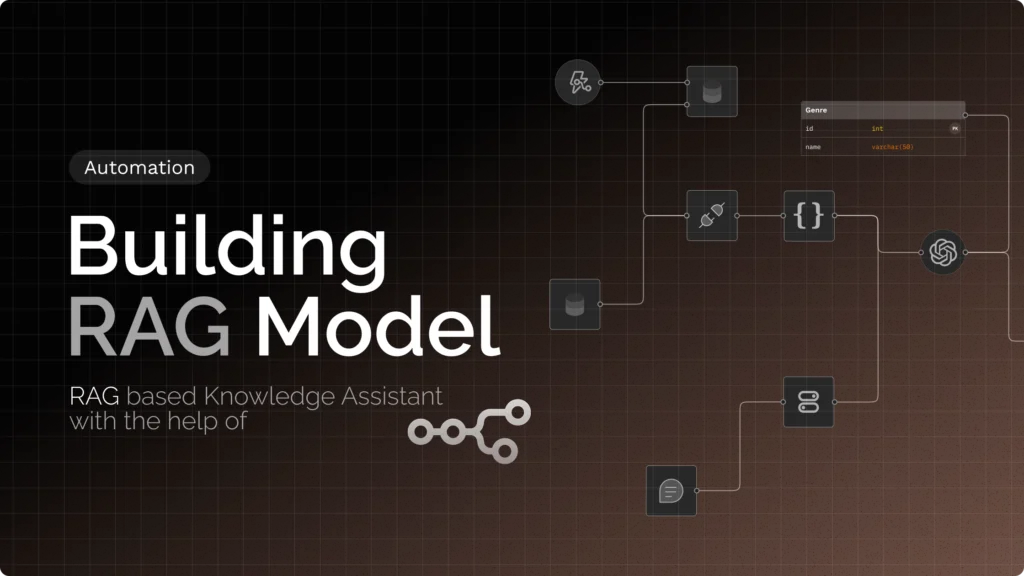
Building intelligent document-based question-answering systems typically requires extensive coding knowledge and complex deployment pipelines. N8n changes this by providing a visual workflow automation platform that lets you create a sophisticated RAG knowledge base (Retrieval-Augmented Generation) assistant without writing code.
Updated October 2026: this guide used to build the whole pipeline by hand: HTTP Request nodes calling the OpenAI and Pinecone REST APIs, plus several hundred lines of JavaScript in Code nodes for file parsing, chunking and context building. That is no longer the way to do it. n8n now ships native AI nodes for every step (data loader, text splitter, embeddings, vector stores, chat models, retrieval chains and agents), so a working RAG assistant is two small workflows with no custom code. I rebuilt the guide around those nodes, and updated the Pinecone setup (indexes are now serverless, with a free Starter plan) and the cost figures, several of which were badly out of date.
RAG combines information retrieval with text generation. Instead of relying only on pre-trained knowledge, RAG systems search through your documents to find relevant information, then use that context to generate accurate answers. This approach significantly reduces hallucinations and provides responses grounded in your actual data.
This guide shows you how to build a RAG knowledge assistant in n8n that ingests documents, stores them as embeddings in Pinecone, and answers questions from them. It uses two workflows: one to ingest documents and one to answer questions. For the concepts behind it, see how to use RAG to ground LLM answers.
We’ve already created a detailed guide for building this RAG-based assistant using the hard-coded Python method. If you prefer working directly with scripts and full control over the code, you can follow that tutorial here:
👉 Building a RAG with Python
Project Setup and Requirements
You need:
- An n8n instance (n8n Cloud or self-hosted, version 2.x). The nodes below are the built-in AI nodes, found under the “AI” category when you add a node.
- An OpenAI API key for embeddings and the chat model. Add it in n8n under Credentials. (Prefer to keep everything on your own hardware? See running local LLMs with Ollama and n8n; the same workflow works with Ollama’s embedding and chat nodes.)
- A Pinecone account. The free Starter plan is enough to follow this guide; at the time of writing it includes 2 GB of storage, 2M write units and 1M read units per month, up to five indexes, and serverless indexes in AWS
us-east-1only. Check Pinecone’s pricing page for current limits.
Create the Pinecone index
In the Pinecone console, create a new serverless index (the pod-based “p1.x1” setup shown in the earlier version of this guide is gone) with:
- Name:
knowledge-assistant - Dimensions:
1536, which is the output size of OpenAI’stext-embedding-3-small. The index dimension must match your embedding model exactly, so if you pick a different model, use its dimension instead. - Metric:
cosine - Cloud / region: AWS,
us-east-1(the only option on the Starter plan)
Then create an API key (Pinecone’s guide to API keys) and add it in n8n as a Pinecone API credential. You no longer need to enter an “environment” as older Pinecone setups required.
Prepare your documents
- Start with a few PDF or plain-text files you know well, so you can judge whether the answers are right.
- Use descriptive file names; they are useful as source labels in answers.
- Scanned PDFs (images of text) contain no extractable text and need OCR before ingestion.
Step 1: Build the Ingestion Workflow
Create a workflow named “Ingest Documents”. It needs one trigger, one vector-store node, and three attached sub-nodes.
Node 1: a trigger that supplies the file
The simplest option is the n8n Form Trigger with one field of type File, which gives you a web form for uploading documents. You can instead start from a Manual Trigger plus a Google Drive “Download file” node, or a Webhook that receives uploads. Whatever you use, the file must arrive as binary data on the item. Check the trigger’s output panel and note the binary field’s name.
Node 2: Pinecone Vector Store, operation “Insert Documents”
Add a Pinecone Vector Store node and set the operation to Insert Documents. Select your Pinecone credential and the knowledge-assistant index. Under Options, set a Pinecone Namespace (for example handbook); namespaces let you keep several knowledge bases in one index and query them separately.
Insert Documents has two required sub-nodes, which appear as connectors on the node:
Sub-node A: Embeddings OpenAI
Add the Embeddings OpenAI node, attach your OpenAI credential, and choose text-embedding-3-small as the model (confirm the model name in the dropdown). This single node replaces the old “Generate Embeddings” HTTP Request node.
Sub-node B: Default Data Loader (with a text splitter)
Add the Default Data Loader node. Set Type of Data to Binary and Data Format to Automatically Detect by MIME Type; it falls back to plain text when it cannot recognise the type, so if a PDF comes through as garbage, set the format explicitly. If your form’s file field has a different binary name than the loader expects, make them match. Then choose how to split the text:
- Text Splitting: Simple uses a recursive character splitter with 1,000-character chunks and 200 characters of overlap, a sensible default, and the same values used in our Python version of this project.
- Text Splitting: Custom lets you attach a Recursive Character Text Splitter sub-node and set Chunk Size and Chunk Overlap yourself. Smaller chunks (500–700 characters) suit pointed factual questions; larger ones (1,000–1,500) suit questions that need more surrounding context.
Under the loader’s Options, add a Metadata entry such as file_name (set from the uploaded file’s name). Whatever metadata you attach is stored with each chunk in Pinecone, and it is how the assistant can later say which document an answer came from.
Connect Trigger → Pinecone Vector Store, with the embeddings and data loader plugged into the vector store’s sub-node connectors. Execute the workflow with a test file. In the Pinecone console, the index’s record count should go up, with your metadata attached. That is the entire ingestion pipeline: file loading, chunking, embedding and storage in one node.
Avoid duplicates: running Insert Documents twice on the same file stores the chunks twice, and duplicates crowd out other results at query time. To re-index a changed document, either enable Clear Namespace (wipes the namespace before inserting, fine when one namespace holds one knowledge base) or use the node’s Update Documents operation to overwrite chunks by ID.
Step 2: Build the Question-Answering Workflow
Create a second workflow named “Ask the Knowledge Base”.
Node 1: Chat Trigger
Add a Chat Trigger. It gives you a built-in chat window inside n8n for testing and can be made public with a hosted chat URL or embedded widget. If you would rather call the assistant from your own app, use a Webhook trigger and a “Respond to Webhook” node instead.
Node 2: Question and Answer Chain
Add the Question and Answer Chain node. It needs two sub-nodes: a chat model and a retriever. For the chat model, add an OpenAI Chat Model node and pick a small, inexpensive model; for RAG the answer comes from the retrieved text, not the model’s memory, so you rarely need a flagship one. In the chain’s options, add a system prompt along the lines of: “Answer using only the provided context. If the context does not contain the answer, say you don’t know. Keep answers concise.” That instruction is the single most effective hallucination guard.
Node 3: Vector Store Retriever, fed by Pinecone
Plug a Vector Store Retriever sub-node into the chain’s retriever connector. Then add another Pinecone Vector Store node feeding the retriever, this time with the operation Retrieve Documents (As Vector Store for Chain/Tool). Use the same Pinecone credential, index and namespace as the ingest workflow, and attach a second Embeddings OpenAI node using the same model (text-embedding-3-small). Mixing embedding models between ingestion and querying is the most common reason a RAG assistant returns nonsense, because vectors from different models are not comparable.
In the retriever, set the Limit (the number of chunks returned) to around 4. More chunks give the model more context but also more irrelevant text.
Open the chat, ask a question about one of your documents, and the chain will embed it, retrieve the closest chunks from Pinecone, and answer from them. The whole question-answering path is three connected nodes, where the old version needed eight, including hand-written JavaScript for relevance thresholds and context formatting.
Variation: let an AI Agent decide when to retrieve
A Question and Answer Chain always retrieves, even for “hello”. If the assistant should also handle small talk or use other tools, use an AI Agent node instead and set the Pinecone node’s operation to Retrieve Documents (As Tool for AI Agent). Give the tool a clear name and description (for example “Search the HR handbook”); the agent decides when to call it. This is the same retrieval, but with the model in control, which is the pattern we cover in what is an agentic AI. Because the agent also benefits from conversation history, add a Simple Memory sub-node if you want follow-up questions to work.
Step 3: Make it Reliable
The old guide had a separate error-handler workflow and hand-rolled rate limiting. Both are now simpler:
- Error handling: create a small workflow that starts with an Error Trigger node and sends you a Slack or email message, then select it as the Error Workflow in the settings of your ingest and answer workflows. Any failed execution (an expired API key, a Pinecone outage) will notify you. On individual nodes, the Retry On Fail setting handles transient API errors.
- Rate limiting: if you expose the assistant publicly, do not rely on a Code node in n8n to throttle traffic. Put limits in front of it: a reverse proxy or API gateway, or your chat widget’s own throttling. Also set a monthly spending limit on your OpenAI account.
- Observability: use the Executions list to see each question, which chunks were retrieved and what the model returned. When an answer is wrong, this is where you find out whether retrieval or generation was at fault.
Testing the System
- Ingest: upload a test document through the form and confirm the run succeeds and the vector count in Pinecone increases. A short document typically produces a handful of chunks (at 1,000 characters per chunk, a one-page text file is a few chunks).
- Ask something the document answers and check the answer against the source.
- Ask something it doesn’t answer. The assistant should say it doesn’t know. If it invents an answer, tighten the system prompt.
- Inspect retrieval. Open the execution and look at the chunks the retriever returned. If they are off-topic, the problem is chunking, embeddings or the namespace, not the chat model.
Don’t trust fixed latency numbers from any guide, including the ones this page used to list; they depend on your model, document size and region. Measure from the Executions view instead. As a rough guide, embedding and retrieval take well under a second, and the chat-model call is the slowest step.
Conclusion
You now have a RAG knowledge-base assistant built from n8n’s native AI nodes: an ingest workflow that loads, splits, embeds and stores documents, and an answer workflow that retrieves the relevant chunks and responds from them. The advantages:
- No custom code for the core pipeline. Loading, chunking, embedding, storing and retrieving are all nodes you can inspect and swap.
- Easy to swap components. Change the vector store (Qdrant, pgvector, or the in-memory Simple Vector Store for quick prototypes), the embedding model, or the chat provider by replacing a node, without rewriting logic. A note on the Simple Vector Store: it keeps data in memory only, loses it when n8n restarts, and shares memory keys across the whole instance, so use it for prototyping rather than production.
- Cheap to run. Pinecone’s free Starter plan covers a small knowledge base,
text-embedding-3-smallcosts about $0.02 per million tokens (so indexing a few hundred pages costs cents), and each question with a small chat model typically costs a small fraction of a cent. Your spend will scale with query volume, so set usage limits. - Extensible. Add conversation memory, several namespaces for separate knowledge bases, a Slack or Telegram front end, or an agent that combines document search with other tools.
If you outgrow visual workflows, or want more control over chunking and evaluation, the Python version of this project is the same architecture in code.
FAQ
How many documents can this system handle?
The limit is Pinecone’s, not n8n’s. The Starter plan includes 2 GB of storage, which holds a very large number of text chunks (a chunk of 1,000 characters with its 1,536-dimension vector is only a few kilobytes), but it also caps monthly read and write units, so a busy production assistant may need a paid plan. Check Pinecone’s pricing page for current limits.
Can I use a different LLM or embedding provider?
Yes. Replace the OpenAI Chat Model and Embeddings OpenAI sub-nodes with the equivalent nodes for Anthropic, Google, Mistral, Ollama and others. If you change the embedding model, you must create a new index (or namespace) with the new model’s dimension and re-ingest everything, because old vectors are not compatible.
How do I handle document updates?
Re-upload the changed file with Clear Namespace enabled if that namespace holds only one knowledge base, or use the Pinecone node’s Update Documents operation to overwrite chunks by ID. Don’t just insert the new version on top of the old one, or both versions will be retrieved.
How do I add conversation history?
Use an AI Agent node with a Simple Memory (or a persistent memory such as a Postgres or Redis chat memory node) so follow-up questions have the earlier turns as context. The Question and Answer Chain treats every question independently.
Can I customize chunk sizes?
Yes. In the Default Data Loader, set Text Splitting to Custom and attach a Recursive Character Text Splitter, then adjust Chunk Size and Chunk Overlap. Smaller chunks (500–700 characters) work better for specific factual questions; larger ones (1,000–1,500) for questions needing broader context. Re-ingest after changing them.
How do I improve answer accuracy?
Look at the retrieved chunks first. If they’re wrong, adjust chunk size, add metadata filters, or increase the retriever’s limit. If the chunks are right but the answer is wrong, tighten the system prompt or try a stronger chat model. The Pinecone node also supports optional reranking through a connected reranker node, which can improve the ordering of results.
What does it cost to run?
For a small knowledge base and light usage: Pinecone Starter is free, text-embedding-3-small embeddings cost about $0.02 per million tokens, and a small chat model costs roughly a fraction of a cent per question. Costs rise with query volume and with the size of the chat model you choose. Check the OpenAI and Pinecone pricing pages, because both change often, and set spending limits.