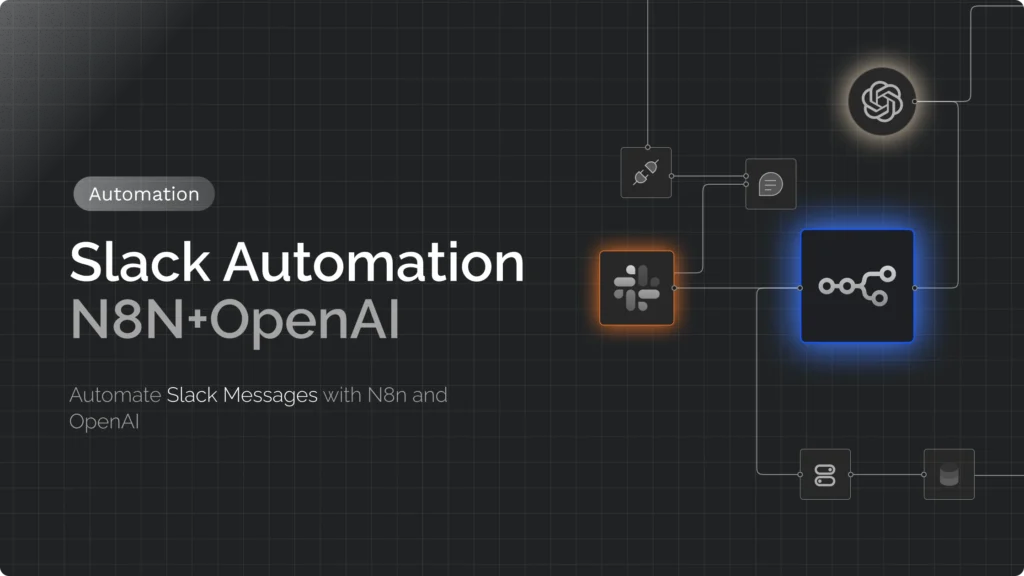
This guide builds a Slack assistant in n8n: someone mentions the bot in a channel, an AI model writes a reply, and the bot answers in the same thread, remembering earlier messages in that thread through Redis. It uses n8n’s built-in Slack, AI Agent and Redis Chat Memory nodes, so there is almost no code.
Updated October 2026: I rebuilt this tutorial. The 2025 version assembled the bot by hand from HTTP Request, Function and Redis nodes, called the retired GPT-4o model, and said n8n needs Node.js 18 (the Docker image bundles its own runtime). n8n now has an AI Agent node with a Redis memory sub-node that does the same job in fewer steps, so that is what this version uses. I checked the workflow’s node types and parameter names against the n8n 2.41.4 node packages and the Slack settings against Slack’s and n8n’s documentation. I did not run it against a live Slack workspace for this update, so expect to adjust small details (such as model name and field names) when you test.
What You Will Build
- A Slack app with a bot user, installed in your workspace.
- An n8n workflow with five nodes: Slack Trigger (fires when the bot is mentioned), an IF filter, an AI Agent with an OpenAI Chat Model and Redis Chat Memory, and a Slack node that replies in the thread.
- Per-thread memory: each Slack thread gets its own conversation history in Redis, which expires after 24 hours.
Scope note: this version responds to @mentions only. It does not read every message in a channel, which keeps costs and privacy risk down. Direct messages need an extra event subscription and a slightly different session key; see “Extending it” at the end.
Prerequisites
- An n8n instance reachable over HTTPS from the public internet, because Slack must be able to send events to it. If you don’t have one yet, see how to deploy n8n on a Google Cloud VM or the guide to choosing a host. n8n Cloud also works.
- Redis reachable from n8n (set up below).
- An OpenAI API key (or another chat model supported by n8n; the same workflow works with other model sub-nodes).
- Permission to create and install a Slack app in your workspace.
Step 1: Add Redis
If n8n runs with Docker Compose, add Redis to the same Compose file so the two containers share a network. Don’t publish Redis’ port to the internet; n8n reaches it by service name:
services:
  n8n:
    # ...your existing n8n service...
    depends_on:
      - redis

  redis:
    image: redis:7-alpine
    container_name: redis
    restart: unless-stopped
    # No "ports:" entry: Redis is reachable only from other containers in this project
    command: ["redis-server", "--maxmemory", "128mb", "--maxmemory-policy", "volatile-lru"]
volatile-lru means that when Redis hits its memory cap it evicts only keys that have an expiry, and the memory node sets an expiry on every conversation, so old threads go first. Apply the change with docker compose up -d. In n8n, create a Redis credential with host redis, port 6379 and no password (acceptable only because the port is not published). If your Redis is elsewhere, use its address and enable a password and TLS.
Step 2: Create the Slack App
Go to api.slack.com/apps and choose Create New App > From a manifest, select your workspace, and paste this manifest. It gives the bot the scopes this workflow needs (app_mentions:read to hear mentions, chat:write to reply, and channels:read and users:read, which n8n’s Slack Trigger requires at minimum for its channel and user lookups):
{
  "display_information": { "name": "Team Assistant" },
  "features": {
    "bot_user": { "display_name": "Team Assistant", "always_online": false }
  },
  "oauth_config": {
    "scopes": {
      "bot": ["app_mentions:read", "chat:write", "channels:read", "users:read"]
    }
  },
  "settings": {
    "org_deploy_enabled": false,
    "socket_mode_enabled": false,
    "token_rotation_enabled": false
  }
}
Create the app, then under OAuth & Permissions choose Install to Workspace (a workspace admin may need to approve) and copy the Bot User OAuth Token. In n8n, create a Slack API credential and paste it as the access token. n8n’s Slack credentials page explains the options; note that the Slack Trigger requires the access-token credential type (OAuth2 doesn’t work with the trigger).
Also copy the app’s Signing Secret (Basic Information page) into the credential’s Signature Secret field. With it set, the trigger checks that incoming requests really come from Slack, which n8n recommends (available from n8n 1.106.0).
You will configure the event subscription in Step 4, after the workflow exists, because Slack needs n8n’s webhook URL.
Step 3: Import the Workflow
In n8n, create a new workflow, then paste the JSON below onto the canvas (or use Import from clipboard). Afterwards, select each node that shows a credential warning and choose your Slack, OpenAI and Redis credentials.
{
  "name": "Slack AI chatbot (mention in thread, Redis memory)",
  "nodes": [
    {
      "parameters": {
        "trigger": ["app_mention"],
        "watchWorkspace": true,
        "options": {}
      },
      "name": "Slack Trigger",
      "type": "n8n-nodes-base.slackTrigger",
      "typeVersion": 1,
      "position": [0, 0],
      "webhookId": "00000000-0000-0000-0000-000000000001",
      "credentials": { "slackApi": { "id": "REPLACE", "name": "Slack bot token" } }
    },
    {
      "parameters": {
        "conditions": {
          "options": { "caseSensitive": true, "leftValue": "", "typeValidation": "strict", "version": 2 },
          "conditions": [
            {
              "id": "no-bot",
              "leftValue": "={{ $json.bot_id }}",
              "rightValue": "",
              "operator": { "type": "string", "operation": "notExists", "singleValue": true }
            }
          ],
          "combinator": "and"
        },
        "options": {}
      },
      "name": "Ignore bot messages",
      "type": "n8n-nodes-base.if",
      "typeVersion": 2.3,
      "position": [220, 0]
    },
    {
      "parameters": {
        "promptType": "define",
        "text": "={{ $json.text.replace(/<@[A-Z0-9]+>/g, '').trim() }}",
        "options": {
          "systemMessage": "You are a helpful assistant in our team's Slack workspace. Answer concisely in Slack-friendly formatting. If you are not sure, say so instead of guessing."
        }
      },
      "name": "AI Agent",
      "type": "@n8n/n8n-nodes-langchain.agent",
      "typeVersion": 3.1,
      "position": [460, 0]
    },
    {
      "parameters": {
        "model": { "__rl": true, "mode": "id", "value": "gpt-6-luna" },
        "options": {}
      },
      "name": "OpenAI Chat Model",
      "type": "@n8n/n8n-nodes-langchain.lmChatOpenAi",
      "typeVersion": 1.3,
      "position": [400, 220],
      "credentials": { "openAiApi": { "id": "REPLACE", "name": "OpenAI account" } }
    },
    {
      "parameters": {
        "sessionIdType": "customKey",
        "sessionKey": "={{ 'slack:' + $('Slack Trigger').item.json.channel + ':' + ($('Slack Trigger').item.json.thread_ts || $('Slack Trigger').item.json.ts) }}",
        "sessionTTL": 86400,
        "contextWindowLength": 10
      },
      "name": "Redis Chat Memory",
      "type": "@n8n/n8n-nodes-langchain.memoryRedisChat",
      "typeVersion": 1.6,
      "position": [560, 220],
      "credentials": { "redis": { "id": "REPLACE", "name": "Redis" } }
    },
    {
      "parameters": {
        "select": "channel",
        "channelId": { "__rl": true, "mode": "id", "value": "={{ $('Slack Trigger').item.json.channel }}" },
        "text": "={{ $json.output }}",
        "otherOptions": {
          "thread_ts": { "replyValues": { "thread_ts": "={{ $('Slack Trigger').item.json.thread_ts || $('Slack Trigger').item.json.ts }}" } },
          "includeLinkToWorkflow": false
        }
      },
      "name": "Reply in thread",
      "type": "n8n-nodes-base.slack",
      "typeVersion": 2.7,
      "position": [820, 0],
      "webhookId": "00000000-0000-0000-0000-000000000002",
      "credentials": { "slackApi": { "id": "REPLACE", "name": "Slack bot token" } }
    }
  ],
  "connections": {
    "Slack Trigger": { "main": [[{ "node": "Ignore bot messages", "type": "main", "index": 0 }]] },
    "Ignore bot messages": { "main": [[{ "node": "AI Agent", "type": "main", "index": 0 }], []] },
    "AI Agent": { "main": [[{ "node": "Reply in thread", "type": "main", "index": 0 }]] },
    "OpenAI Chat Model": { "ai_languageModel": [[{ "node": "AI Agent", "type": "ai_languageModel", "index": 0 }]] },
    "Redis Chat Memory": { "ai_memory": [[{ "node": "AI Agent", "type": "ai_memory", "index": 0 }]] }
  },
  "settings": { "executionOrder": "v1" }
}
What each part does:
- Slack Trigger fires on the Bot / App Mention event. “Watch whole workspace” is on, which means one execution for every mention in any channel the bot is in; n8n warns about this setting, which is fine here because only mentions trigger it.
- Ignore bot messages stops the flow if the event comes from another bot (it has a
bot_id), which prevents bot-to-bot loops. - AI Agent takes the message text with the
<@BOTID>mention stripped out, plus a system message that sets the assistant’s tone. Per n8n’s AI Agent documentation, the agent works with a connected chat model, optional memory and optional tools. Edit the system message to describe your team and rules. This is where you would also add tools, such as a knowledge-base search or a ticket-lookup, to turn the chatbot into something more useful (see the n8n RAG assistant guide). - OpenAI Chat Model is the language model. I set
gpt-6-luna, which OpenAI’s models page lists as its efficiency-focused model for high-volume tasks; model names change often, so pick a current one from that page, or any other model sub-node n8n offers. - Redis Chat Memory stores conversation history under a key built from the channel and the thread (the existing thread’s timestamp, or the message’s own timestamp if it starts a new thread). Each Slack thread therefore has its own memory. Per the node documentation, it keeps the last 10 interactions as context (
contextWindowLength) and the session expires after 86,400 seconds (24 hours). - Reply in thread posts the agent’s
outputback to the same channel, as a reply to the thread, using the Slack node’s thread option.
One caution with memory in sub-nodes: n8n’s docs note that expressions in sub-nodes always resolve against the first input item. That is why the session key refers to the trigger node explicitly ($('Slack Trigger').item.json…). It also means this workflow handles one event per execution, which is how the Slack Trigger behaves.
Step 4: Connect Slack to n8n
- Open the Slack Trigger node and copy the Webhook URL. Start with the Test URL.
- In your Slack app, go to Event Subscriptions, turn on Enable Events, and paste the URL as the Request URL. Click Execute step in n8n first so it is listening; Slack sends a verification request and should show “Verified”. (The trigger answers Slack’s URL-verification challenge for you.)
- Under Subscribe to bot events, add
app_mentionand save. Slack may ask you to reinstall the app because the permissions changed. - Invite the bot to a channel (type
/invite @Team Assistant), then mention it:@Team Assistant what's a good way to name a git branch?You should see the execution in n8n and a threaded reply in Slack. - Once it works, switch to the Production URL: publish the workflow, copy the production webhook URL from the trigger, paste it into the Slack app’s Request URL, and save.
A gotcha straight from n8n’s docs: Slack allows only one request URL per app, so the test and production URLs can’t both receive events. If your workflow works only when testing, or only when published, that’s the reason. You can also use a separate Slack app for testing.
Testing the Memory
In a thread, ask something, then reply in the same thread with another mention, such as @Team Assistant explain that more simply. The answer should refer to the earlier exchange. Because the bot only wakes up on mentions, you need to mention it in each follow-up. To inspect what is stored, look at the keys in Redis:
docker exec -it redis redis-cli --scan --pattern 'slack:*'
docker exec -it redis redis-cli ttl "slack:C0123456789:1700000000.000100"
ttl should show a number up to 86,400 (the TTL in seconds). The exact key format n8n uses internally may add a prefix; the scan command shows what’s really there. Replace the example key with one from the scan output.
Reliability and Cost Notes
- Slack’s three-second rule and retries. Per Slack’s Events API documentation, your endpoint must return a 2xx response within three seconds or Slack retries delivery up to three times (almost immediately, then after one minute, then after five). If n8n is down, unreachable or very slow to answer, you may see duplicate replies. If you do, add a deduplication step that stores each event’s unique ID in Redis for a few minutes and drops repeats.
- Errors. If the model call fails (rate limit, bad key, outage), the user gets no reply. In n8n, set the AI Agent’s retry-on-fail setting, and create an Error Workflow that posts “Sorry, something went wrong” or alerts you. Slack also retries at most three times, so don’t rely on that for recovery.
- Cost. Every mention is a model call, and each call includes up to 10 earlier interactions as context, so long threads cost more than short ones. Lower
contextWindowLengthor the model size if you need to cut spend, and set a spending limit in your OpenAI account. - Slack formatting. Slack uses its own markup (“mrkdwn”), not full Markdown, so headings and tables from the model may look odd. A sentence in the system message asking for Slack-friendly formatting helps.
- Privacy and safety. Anything people mention to the bot is sent to your model provider and stored in Redis for 24 hours. Tell your team what the bot does with messages. If you add tools that can read internal data or take actions, treat Slack messages as untrusted input (a user can try to talk the agent into misusing a tool), give tools the minimum permissions, and require human approval for consequential actions.
Extending It
- Direct messages: add the
im:historyandim:readscopes and themessage.imbot event, set the trigger to Any Event, filter on the event type, and use only the channel ID as the session key so a DM keeps one continuous conversation. DMs have no thread to reply in, so remove the thread option for those. - Knowledge base answers: connect a vector-store tool so the agent searches your documentation first. See building a RAG assistant in n8n.
- Approvals: n8n’s Slack node has a send-and-wait operation for human approval, useful before the agent performs an action.
- Streaming and slow tasks: for long answers, post an immediate “working on it” message and a second message with the result.
Why does the bot only answer when I mention it?
The workflow subscribes to the app_mention event, so it only runs when someone @-mentions the bot. That keeps the bot from reading and replying to every channel message. To respond to all messages in a channel or to direct messages, subscribe to the matching message events and filter out bot messages to avoid loops.
Why does my Slack workflow work only in test mode or only when published?
Slack allows one request URL per app, and the test and production webhook URLs in n8n are different. Use the Test URL while developing, then switch the Slack app to the Production URL, or use a separate Slack app for testing.
How does the bot remember earlier messages?
The Redis Chat Memory node stores the conversation under a session key made from the channel and thread. Each follow-up in the same thread loads that history (the last 10 interactions by default), and the history expires after 24 hours.
How do I stop duplicate replies?
Slack retries an event if it does not get a 2xx response within three seconds. Check that n8n is reachable and responsive. If duplicates persist, store each event ID in Redis with a short expiry and skip events you have already handled.
Can I use a different AI model?
Yes. Replace the OpenAI Chat Model sub-node with any other chat model sub-node n8n offers, such as Anthropic, Google Gemini, or a local model through Ollama, and connect it to the AI Agent in the same way.