LaTeX page numbering is controlled by two commands: \pagenumbering{style} picks the numeral style (arabic, roman, letters) and restarts the count at 1, and \pagestyle{...} or \thispagestyle{...} decides whether the number is printed at all. For anything beyond that, such as a number in the bottom-right corner or “Page 3 of 10”, you add the fancyhdr package. This guide shows each case with a complete example you can paste into Overleaf or any LaTeX editor.
Every example on this page was compiled with Tectonic 0.17 (a self-contained TeX engine using XeTeX) on 18 November 2026, and we checked the printed page numbers in each PDF with pdftotext. The code is standard LaTeX and is not tied to Tectonic. New to LaTeX? Start with our beginner’s LaTeX tutorial.
TL;DR: Page Numbering Commands
| You want | Use |
|---|---|
| Roman numerals (i, ii, iii) | \pagenumbering{roman} |
| Back to normal numbers, restarting at 1 | \pagenumbering{arabic} |
| No number on the title page | \thispagestyle{empty} after \maketitle |
| No page numbers anywhere | \pagestyle{empty} |
| Start at a specific number | \setcounter{page}{5} |
| Roman front matter, arabic main text (book class) | \frontmatter and \mainmatter |
| Number in a different position | fancyhdr: \fancyfoot[R]{\thepage} |
| “Page X of Y” | fancyhdr + lastpage: \pageref{LastPage} |
LaTeX Page Numbering Styles
\pagenumbering takes one of five styles. Each call also resets the page counter to 1, which is why switching from roman to arabic gives you a clean “1” at the start of the main text. The LaTeX2e reference for \pagenumbering lists the same options.
\documentclass{article}
\begin{document}
\pagenumbering{arabic}
Arabic: 1, 2, 3 (the default).
\newpage
\pagenumbering{roman}
Lowercase roman: i, ii, iii.
\newpage
\pagenumbering{Roman}
Uppercase roman: I, II, III.
\newpage
\pagenumbering{alph}
Lowercase letters: a, b, c.
\newpage
\pagenumbering{Alph}
Uppercase letters: A, B, C.
\end{document}
Compiled, the five pages are numbered 1, i, I, a and A. Each switch restarted the count, so every page shows the first value of its style.
| Style | Output |
|---|---|
arabic | 1, 2, 3 (default) |
roman | i, ii, iii |
Roman | I, II, III |
alph | a, b, c |
Alph | A, B, C |
The letter styles only go up to 26 (z or Z). Use them for short sections such as appendices, not for a whole document.
Roman Numerals for Front Matter, Arabic for the Main Text
Theses, reports and manuals usually number the abstract and table of contents in roman numerals and start the main text at 1. In the article and report classes you do it by switching styles at the right points:
\documentclass{article}
\usepackage{lipsum}
\title{Annual Report}
\author{Docs Team}
\begin{document}

% Title page: no number shown, not counted in the roman sequence
\pagenumbering{gobble}
\maketitle
\newpage

% Front matter: i, ii, ...
\pagenumbering{roman}
\begin{abstract}
\lipsum[1]
\end{abstract}
\tableofcontents
\newpage

% Main text: restarts at 1
\pagenumbering{arabic}
\section{Introduction}
\lipsum[1-4]
\section{Results}
\lipsum[5-8]
\end{document}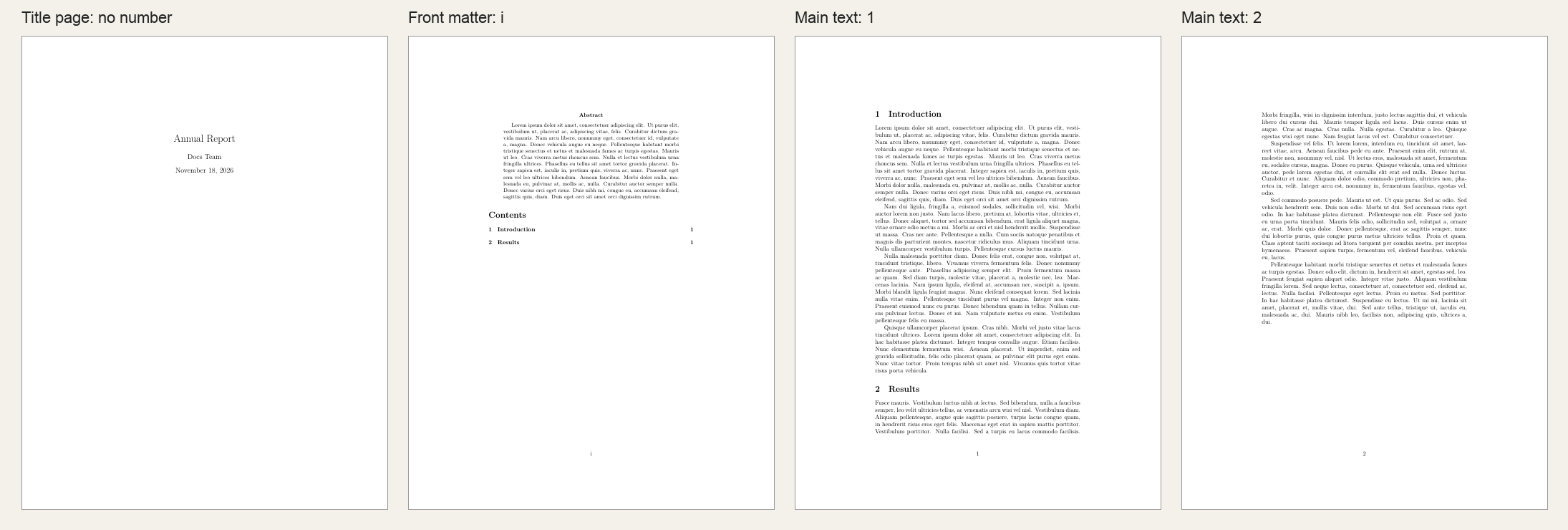
Two details make this work:
\pagenumbering{gobble}on the title page. Thegobblestyle prints nothing, so the title page has no number, and the next\pagenumbering{roman}starts the front matter at i.\newpagebefore each switch. The style applies to the page being built when you call it. Without the page break, the last front-matter page would show an arabic 1.
The lipsum package only generates dummy paragraphs for the example. Remove it and the \lipsum lines in your own document.
The book class does it for you
If you use \documentclass{book}, three built-in commands handle the switch:
\documentclass{book}
\usepackage{lipsum}
\begin{document}
\frontmatter          % roman numerals, chapters unnumbered
\tableofcontents
\chapter{Preface}
\lipsum[1]

\mainmatter           % arabic numerals, restarts at 1
\chapter{Getting Started}
\lipsum[1-3]
\chapter{Advanced Topics}
\lipsum[4-6]

\backmatter           % numbering continues, chapters unnumbered
\chapter{Glossary}
\lipsum[7]
\end{document}
In our build, the contents and preface pages were numbered i to iv, the first chapter started at 1, and the glossary continued the arabic sequence (page 5). \frontmatter also leaves chapters unnumbered, which is what you want for a preface or acknowledgements.
How to Remove Page Numbers in LaTeX
There are three cases: one page, every page, or a whole section of the document.
Remove the number from the title page only
\documentclass{article}
\title{Short Note}
\author{Docs Team}
\begin{document}
\maketitle
\thispagestyle{empty}   % hide the number on the title page only

\section{First Section}
Page one has no number. Every following page shows one.
\newpage
\section{Second Section}
This page shows the number 2.
\end{document}
\thispagestyle{empty} affects only the current page. Put it after \maketitle: in the standard classes, \maketitle sets the title page to the plain style itself, so a command placed before it is overridden. In the compiled PDF, page 1 had no number and page 2 showed “2”.
Remove page numbers from the whole document
\documentclass{article}
\pagestyle{empty}      % no page numbers anywhere
\title{Poster Handout}
\author{Docs Team}
\begin{document}
\maketitle
\thispagestyle{empty}  % \maketitle forces the plain style on its own page
Body text.
\newpage
More text, still no number.
\end{document}
\pagestyle{empty} in the preamble removes numbers from every page, except the title page for the same reason as above, so keep the \thispagestyle{empty} line too. Chapter opening pages in report and book behave the same way: they force plain, so add \thispagestyle{empty} after each \chapter or redefine the plain style with fancyhdr (shown below).
Hide numbers for a run of pages
Use \pagenumbering{gobble} before the pages and switch back with \pagenumbering{arabic} (or roman) afterwards. Remember that switching back restarts at 1. If you want the count to continue instead, use \pagestyle{empty} for those pages and \pagestyle{plain} after them: the counter keeps running while the numbers are hidden.
Start or Restart Page Numbering at a Specific Number
Set the page counter directly with \setcounter{page}{n}. The page on which you call it gets the number n:
\documentclass{article}
\begin{document}
\setcounter{page}{5}  % the first page is numbered 5
This page shows 5.
\newpage
This page shows 6.
\end{document}
This printed 5 and 6. It is useful when a chapter is compiled as a separate file but must continue the numbering of a printed book. To restart at 1 in the middle of a document without changing the style, use \setcounter{page}{1} after a \newpage.
Prefixed numbers for an appendix (A-1, A-2)
\thepage is the command LaTeX prints as the page number, so you can redefine it to add a prefix:
\documentclass{article}
\begin{document}
\section{Main Text}
Pages 1, 2, 3 \dots
\newpage
\appendix
\pagenumbering{arabic}                  % restart at 1
\renewcommand{\thepage}{A-\arabic{page}} % show A-1, A-2, ...
\section{Data Tables}
This page shows A-1.
\newpage
This page shows A-2.
\end{document}
The main text page showed 1 and the appendix pages showed A-1 and A-2. The table of contents uses the same \thepage, so appendix entries will also be listed as A-1, A-2.
Change the Position of the Page Number With fancyhdr
The built-in styles put the number at the bottom centre (plain) or in the header (headings). For any other position, load the fancyhdr package. It splits the header and footer into left (L), centre (C) and right (R) slots:
\documentclass{report}
\usepackage{lipsum}
\usepackage{fancyhdr}
\pagestyle{fancy}
\fancyhf{}                         % clear the default header and footer
\fancyfoot[R]{\thepage}            % number at bottom right
\renewcommand{\headrulewidth}{0pt} % remove the header line

% Chapter opening pages use the "plain" style; make it match
\fancypagestyle{plain}{%
  \fancyhf{}%
  \fancyfoot[R]{\thepage}%
  \renewcommand{\headrulewidth}{0pt}%
}
\begin{document}
\chapter{Overview}
\lipsum[1-6]
\end{document}
\fancyhf{} clears all slots first; without it, fancyhdr’s default header (the chapter name and the page number) stays. The \fancypagestyle{plain} block matters in report and book: chapter opening pages switch to plain, and without the redefinition the first page of each chapter would show a centred number while the others show it on the right. In our build, both pages, including the chapter opening page, had the number at the bottom right.
To put the number in the header instead, use \fancyhead[R]{\thepage}. For two-sided documents, the slot can depend on the page: \fancyfoot[LE,RO]{\thepage} puts it on the outer edge (left on even pages, right on odd pages). The header line drawn by \headrulewidth is a rule like the ones in our LaTeX horizontal line guide; set it to 0.4pt if you want it back.
“Page X of Y” in LaTeX
To print the total page count, combine fancyhdr with the lastpage package, which places a label on the last page:
\documentclass{article}
\usepackage{lipsum}
\usepackage{fancyhdr}
\usepackage{lastpage}
\pagestyle{fancy}
\fancyhf{}
\fancyfoot[C]{Page \thepage\ of \pageref{LastPage}}
\renewcommand{\headrulewidth}{0pt}
\begin{document}
\lipsum[1-10]
\end{document}
The two pages read “Page 1 of 2” and “Page 2 of 2”. The total comes from a label, so LaTeX needs two runs: on the first run it shows “??”. Overleaf and Tectonic rerun automatically; with pdflatex on the command line, compile twice (or use latexmk).
Common Page Numbering Problems
“Object @page.1 already defined” or duplicate destination warnings
If you load hyperref and two pages end up with the same number, hyperref creates two link targets with the same name. We reproduced this with a titlepage environment, which sets its page to 1 and then resets the counter so the next page is also 1. Tectonic (XeTeX) reported warning: Object @page.1 already defined.; pdfLaTeX, the default in Overleaf, reports the same problem as a duplicate destination warning with different wording. Links in the table of contents can then jump to the wrong page.
The fix is to make every page number unique. Switching to \pagenumbering{gobble} before the title page and \pagenumbering{arabic} after it removed the warning in our test. Roman front matter followed by arabic main text (the pattern above) did not trigger it, because “i” and “1” are different names.
The number is still on the title or chapter page
\maketitle and \chapter set their page to plain after your \pagestyle command. Add \thispagestyle{empty} right after them, or redefine plain with \fancypagestyle as shown in the fancyhdr section.
The style changed one page too early or too late
\pagenumbering changes the page currently being built. Put \newpage (or \clearpage, which also prints pending figures) immediately before it so the change starts on a fresh page.
The table of contents shows the wrong numbers
The contents list is written on one run and read on the next. Compile again after any numbering change. In Overleaf, a normal Recompile does this; see our Overleaf guide if you are new to the editor.
Conclusion
For most documents you only need two commands: \pagenumbering to choose the style and restart the count, and \thispagestyle{empty} to hide the number on a title page. Add fancyhdr when you need the number somewhere other than the bottom centre, and lastpage for “Page X of Y”. If you are building a CV rather than a report, our Jake’s resume template guide shows a one-page layout that turns page numbers off entirely.
How do I add page numbers in LaTeX?
The standard classes (article, report, book) add page numbers by default at the bottom centre of each page. If they are missing, the document probably uses \pagestyle{empty}; change it to \pagestyle{plain}.
How do I use roman numerals for page numbers in LaTeX?
Write \pagenumbering{roman} for i, ii, iii or \pagenumbering{Roman} for I, II, III. Put \newpage and \pagenumbering{arabic} where the main text starts to switch back and restart at 1.
How do I remove the page number from the first page in LaTeX?
Put \thispagestyle{empty} on the first page, after \maketitle if you use it. It hides the number on that page only; the next page still shows 2.
How do I start page numbering from a specific page in LaTeX?
Use \pagenumbering{gobble} on the pages that should have no number, then \pagenumbering{arabic} where numbering should start, which shows 1 on that page. To start at another number, add \setcounter{page}{n}.
How do I show “Page 1 of 10” in LaTeX?
Load the fancyhdr and lastpage packages, then set \fancyfoot[C]{Page \thepage\ of \pageref{LastPage}} with \pagestyle{fancy}. Compile twice so the total is filled in.
Why does \pagenumbering reset my page numbers to 1?
That is how the command is defined: every call resets the page counter. If you only want to hide or show numbers without restarting, use \pagestyle{empty} and \pagestyle{plain} instead, or set the counter again with \setcounter{page}{n}.