n8n is a flexible, open-source way to automate marketing tasks — email personalization, lead scoring, social posting, CRM sync and content publishing — without per-task fees or a rigid no-code builder. Below are five n8n marketing automation workflows, each with the exact nodes and settings to build it yourself.
Jump to the one you need, or read through all five for ideas you can mix and match.
n8n Marketing Automation in 2026
n8n’s advantage over marketing tools like Zapier or Make isn’t a feature list, it’s the pricing and control model. Zapier and Make charge per task or per operation, which adds up fast once a workflow fires on every lead or every social post. n8n runs on your own server (or a cheap VPS), so you pay for compute, not per execution, and every node’s configuration, credentials and data stay on infrastructure you control. I’ve written about that trade-off in more detail in n8n vs Zapier and n8n vs Make.
The other real advantage for marketing specifically: n8n has native nodes for OpenAI and an AI Agent node with tool-calling, so you can drop AI generation, scoring or classification directly into a workflow next to your CRM, spreadsheet and email nodes, instead of gluing together a separate AI tool. The five workflows below use exactly that combination.
Top 5 n8n Workflow Examples for Marketing Automation
Each of these is a workflow I’d actually build, not a hypothetical. They cover the marketing tasks that come up most: personalized email, lead scoring, social scheduling, CRM sync and content publishing. Every one includes the exact nodes, in order, so you can rebuild it in n8n without guessing at the wiring.
| Workflow | Trigger | Core nodes | Good for |
|---|---|---|---|
| AI-powered email marketing | Webhook | HTTP Request, If, Edit Fields, Google Sheets, OpenAI, Gmail | Personalized lead follow-up, onboarding sequences |
| Lead nurturing & qualification | Webhook | Code, If, Slack, Google Sheets, Wait, Gmail | Routing hot leads to sales, nurturing the rest |
| Social media automation | Schedule Trigger | Google Sheets, Code, OpenAI, social platform nodes | Keeping a posting calendar running without a person |
| CRM integration & data sync | Webhook + Schedule Trigger | HTTP Request, Postgres, HubSpot, Salesforce, Merge, Slack | Keeping two or more CRMs and a database in sync |
| Content marketing automation | Google Sheets Trigger | Google Drive, AI Agent, WordPress, Slack | Turning a content brief into a published draft |
1. AI-Powered Email Marketing Automation
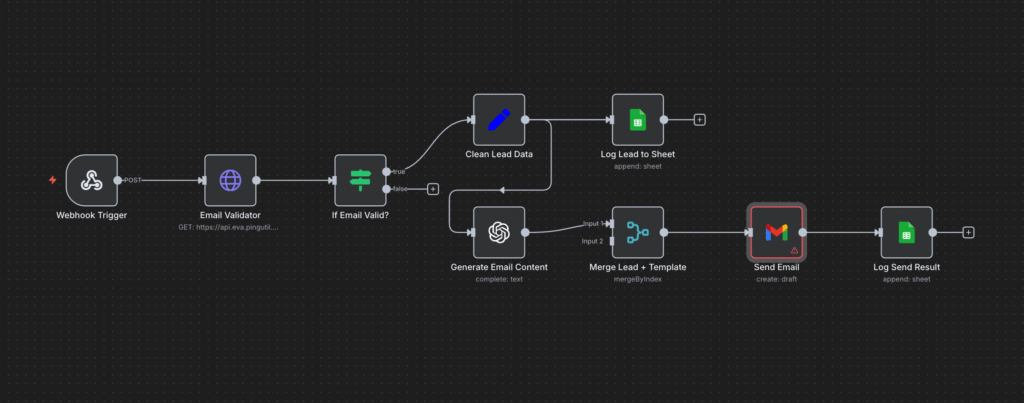
This is the workflow to reach for anywhere a lead or customer needs a personalized email triggered by an event: an abandoned cart, a new SaaS signup, a form submission on a landing page. Instead of a static template, an OpenAI node writes the subject line and body from the lead’s own data, so the email references their name, company and whatever they told you, without a human writing it by hand.
How does it work?
A webhook receives the lead as JSON. An HTTP Request node checks the email against a verification API before anything else runs, so bad addresses never reach the AI or Gmail step. Once verified, the lead is normalized and logged to Google Sheets, the OpenAI node generates the email copy from the lead’s fields, and Gmail sends it. A second Sheets append logs the send for tracking, so you have a record of exactly what went out and when.
Set up steps
- Add a Webhook node: Method
POST, unique path, respond immediately. - Add an HTTP Request node: call an email-verification API; map
{{$json.email}}. - Add an If node: continue only when
data.deliverable = true. - Add an Edit Fields (Set) node: keep/rename
firstName,lastName,company,email. - Add a Google Sheets node: append to
Leads!A:Dwith the mapped values. - Add an OpenAI node: pick a small, fast model (for example
gpt-6-luna, or whichever cost-efficient model your account has access to — this changes often); prompt uses{{$json.firstName}},{{$json.company}}. - Add a Gmail node:
to = {{$json.email}}, a fallback subject line, body from the AI response. - Add a second Google Sheets node: append to
Sends!A:E(timestamp, email, name, company, status). - Wire the nodes in this order on the If node’s “true” branch, and set up credentials for Sheets, OpenAI and Gmail before you activate it.
2. Lead Nurturing and Qualification System
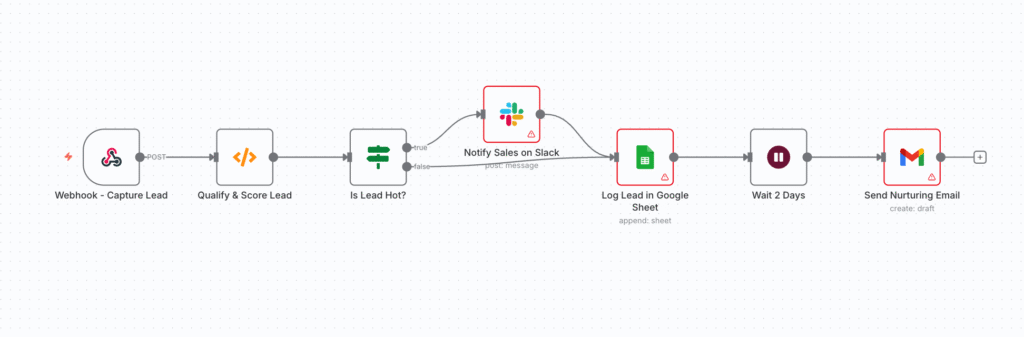
Use this when leads come in faster than sales can qualify them by hand. It scores each lead as it arrives and routes hot leads to Slack for an immediate follow-up, while warm and cold leads go into an automatic nurture sequence instead of a spreadsheet nobody checks.
How does it work?
A webhook captures the lead. A Code node scores it — keywords like “pricing” or “demo” in the message, plus signals like company size, add up to a leadScore and a leadCategory of Hot, Warm or Cold. An If node branches on that category: Hot leads post straight to a Slack sales channel, everything else waits a set number of days and then gets a nurturing follow-up email. Every lead, hot or not, is logged to a tracking sheet either way.
Set up steps
- Webhook node: trigger on
POSTrequests from your web form or CRM. - Code node: JavaScript that calculates a
leadScoreand assigns aleadCategory. - If node: branch on whether
leadCategoryequals'Hot'. - Slack node: on the “true” path, post an alert with the lead’s details to a sales channel.
- Google Sheets node: on both paths, append the lead’s info and score to a tracking sheet.
- Wait node: on the “false” path (Warm/Cold), pause for a set duration, such as two days.
- Gmail node: after the wait, send a nurturing follow-up email.
Set up Slack, Google Sheets and Gmail credentials before you activate the workflow.
3. Social Media Marketing Automation
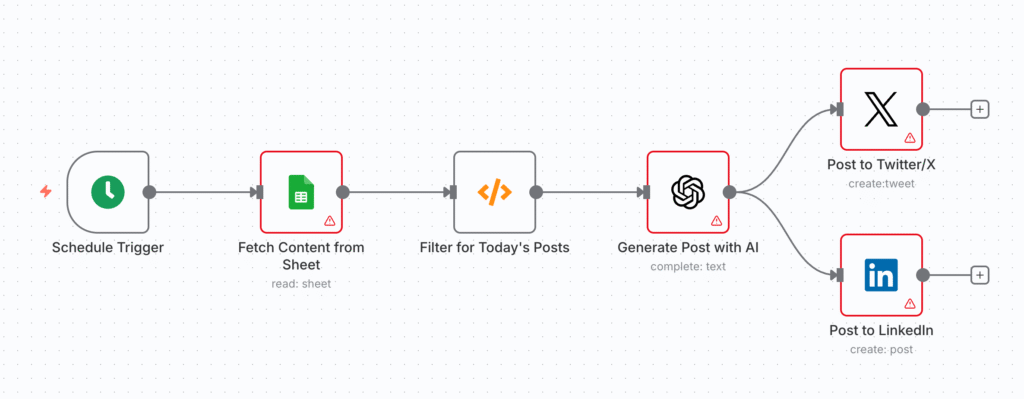
This one runs your posting calendar without anyone opening a dashboard every morning: it reads a content calendar, writes the copy, and publishes to whichever platforms you’ve connected.
How it works
A Schedule Trigger runs daily at your posting time. A Google Sheets node reads your content calendar (columns for scheduledDate, topic, keyMessage and status), and a Code node filters it down to today’s unposted rows. For each one, an OpenAI node writes the copy from the topic and key message, and the result goes out to each platform’s node in parallel.
Set up steps
- Schedule Trigger node: set the interval to run daily at your posting time (for example, 9 AM).
- Google Sheets node: read your content calendar sheet.
- Code node: filter to rows where
scheduledDateis today andstatusisn’t'Posted'. - OpenAI node: prompt using the
topicandkeyMessagefields to generate the post copy. - Social media nodes: one per platform (for example Twitter/X, LinkedIn), each mapped to the AI-generated content.
Set up credentials for Google Sheets, OpenAI and each social account. After a successful post, add a final Google Sheets node to mark the row 'Posted' so it doesn’t go out twice.
4. CRM Integration and Data Sync
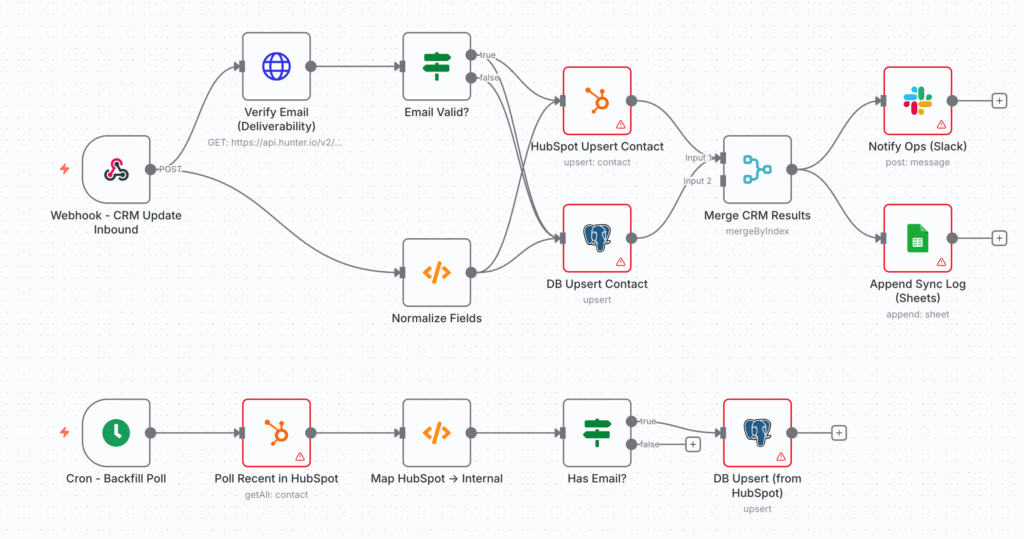
If you run more than one system of record — say HubSpot for marketing and Salesforce for sales, or either one plus your own database — this keeps them from drifting apart. Updates flow in from a webhook in real time, and a scheduled poll catches anything the webhook missed.
How it works
An inbound webhook captures contact updates from your primary CRM, a Code node normalizes the payload into one internal schema, and an HTTP Request node verifies the email before anything gets written. Valid contacts are upserted into your database and both CRMs, a Merge node collects the results for one unified log entry, and Slack gets a summary. A separate scheduled poll re-pulls from HubSpot periodically so the systems stay converged even if a webhook is missed.
Set up steps
- Webhook node:
POST /crm-contact-updates; return200for every entry. - Code node (normalize fields): map inbound keys to
email,firstName,lastName,phone,company,lifecycleStage,updatedAt. - HTTP Request node (verify email): call a verifier like Hunter; branch with an If node on “Email Valid?”.
- Postgres node: upsert the contact by email into your contacts table.
- HubSpot node: upsert by email; map name, phone, company and lifecycle stage.
- Salesforce node: upsert with an email lookup; map the same fields.
- Merge node: collect the DB, HubSpot and Salesforce results for one unified log entry.
- Slack node: post a success summary to an ops channel.
- Google Sheets node: append a sync log entry (timestamp, email, stage, status).
- Schedule Trigger node (backfill poll): every 10 minutes, pull HubSpot’s contact list, map it through the same normalize/verify/upsert steps as a safety net.
Set up credentials for Postgres, HubSpot, Salesforce, Slack and Sheets, and store your verifier’s API key as an environment variable rather than in the node itself.
5. Content Marketing Automation

This turns a one-line content brief into a published draft: add a row to a sheet, and a first draft is waiting on your CMS by the time you check Slack.
How it works
A Google Sheets trigger fires when a new row is added to a content queue. The workflow pulls reference material from a Google Drive folder, feeds it to an AI Agent node along with a prompt built from the row’s topic and keywords, and asks for a structured title-and-content output. That output is published straight to WordPress as a draft (not auto-published — see the note on that below), the sheet row is updated with the status and URL, and the team gets a Slack notification.
Set up steps
- Google Sheets Trigger: set to
On Row Addedfor your content queue sheet, with columns fortopic,keywords,referenceFolderId,statusandpostUrl. - Google Drive node:
Download File, mappingreferenceFolderIdfrom the trigger to fetch context documents. - AI Agent node: connect an OpenAI chat model, turn on “Require Specific Output Format”, and connect a Structured Output Parser node with a JSON schema like
{"title": "string", "content": "string"}. Prompt it with the topic and keywords, and instruct it to use the attached files as reference. - WordPress node:
Create Post, mapping the parsedtitleandcontentfields. Set the status todraft, notpublish. - Google Sheets node:
Update Rowto setstatusto'Draft ready'and fill inpostUrlfrom the WordPress node’s output. - Slack node: notify your content channel with the draft’s title and link.
Set up credentials for Google Sheets, Google Drive, OpenAI, WordPress and Slack. Publish the AI’s draft as draft, not publish — have a person read and edit it before it goes live. That single change is the difference between a useful drafting assistant and a workflow that quietly puts unreviewed AI copy on your site.
Best Practices for n8n Marketing Automation
A few things that make the difference between a workflow that runs quietly for months and one that breaks the first time something unexpected comes through:
- Validate before you act. Every workflow above checks email deliverability (or field completeness) before it emails, logs or upserts anything. Skip that step and you’ll spend more time cleaning up bad data than the automation saves you.
- Give every branch a fallback. An If node with only a “true” path is a workflow that silently drops the “false” case. Log or route both branches, even if one just goes to a spreadsheet.
- Keep a human in the loop for anything public. AI-generated email copy, social posts and blog drafts should land as a draft or a Slack approval step first, not publish automatically. See workflow 5 above.
- Scope your credentials. Use API keys and OAuth connections with the narrowest access each node actually needs, and store secrets as n8n environment variables or credentials, never hardcoded in a node’s parameters.
- Handle failures explicitly. Wrap external API calls (email verification, CRM upserts) with retry logic or an error branch, so a single failed request doesn’t silently kill the run.
- Watch your AI spend. An OpenAI node inside a high-volume trigger (every lead, every post) can rack up token costs fast. Cap it with a lightweight model and keep an eye on usage, especially while you’re still tuning the prompt.
- Log every run somewhere you’ll actually check. Every workflow above appends to a Google Sheet for exactly this reason — when something goes wrong, you want a record, not a guess. n8n also keeps its own execution history for debugging; that data grows fast, so it’s worth setting a pruning policy for it early rather than after your database is already bloated.
Measuring Success
Skip the vanity metrics and track what actually tells you the workflow is working:
- Response time: how long between a lead arriving and a hot lead reaching a rep in Slack. This is usually the biggest visible win.
- Delivery and open rates on the AI-generated emails, compared to your old template — if they’re worse, the prompt needs work before the volume does.
- Time saved: roughly how long the manual version of this task used to take per week, versus the few minutes it now takes to review what the workflow produced.
- Failure rate: how often a run errors out or needs manual intervention. A workflow that fails silently is worse than no automation at all.
Conclusion
These five workflows cover most of what marketing automation actually needs: personalized outreach, lead routing, a posting calendar, CRM sync and content drafting. None of them require a large team or an expensive platform — just n8n, the handful of nodes listed above, and a Google Sheet to keep score.
Start with whichever one solves your most annoying manual task this week. Get it running end to end with the validation and fallback steps in place, then layer in the next one. That’s a better use of time than trying to build all five at once.
Frequently Asked Questions
Is n8n free for marketing automation?
n8n is open-source and free to self-host — you only pay for the server it runs on. n8n also offers a paid Cloud version if you don’t want to host it yourself. Either way, you’re not charged per task the way you are with Zapier or Make, which matters once a workflow fires on every lead or every post.
Do I need to know how to code to use these workflows?
Mostly no. Every workflow above is built from n8n’s visual nodes and drag-and-drop connections. The Code nodes used for lead scoring and filtering need a few lines of JavaScript, but they’re short and included in the setup steps above — you can copy and adapt them without deep programming experience.
n8n vs Zapier or Make for marketing automation — which should I use?
If you want the fastest setup and don’t mind per-task pricing, Zapier or Make will get you there quicker. n8n takes a bit more setup but costs a flat hosting fee regardless of volume, keeps your data on your own infrastructure, and gives you native AI nodes for tasks like the email personalization in workflow 1. I switched for the cost and control — details in my n8n vs Zapier comparison.
How much do the AI steps in these workflows cost to run?
It depends on volume and which model you use. A short email or social post generated with a small, low-cost model like the one used in workflow 1 typically costs a fraction of a cent per generation, but it adds up at high volume. Start with a cheap, fast model, and only move to a larger one if the output quality doesn’t hold up.
Should AI-generated content from these workflows publish automatically?
Not without review. Workflow 5 deliberately creates the WordPress post as a draft rather than publishing it, and the lead-nurturing and email workflows log everything to a sheet you can audit. Treat AI output as a first draft a human signs off on, not a finished product.