
There’s a specific kind of frustration that comes from staring at a half-filled spreadsheet at 11 PM.
I had 47 rows. Each one had a business name I’d searched for manually, a phone number I’d typed out by hand, and a website I’d copy-pasted from Google Maps one tab at a time. Two hours of work. One city. One niche.
When I did the math on what scaling that would actually look like — 10 cities, 5 business types — I was looking at somewhere between 25 and 50 hours of pure data entry. Work that generates zero value until it’s completely finished.
So I stopped, closed the spreadsheet, and started building something better.
What I ended up with is a 5-node n8n workflow that replaces that entire process. You pick a business type, pick a city, hit submit — and every matching local business lands in your Google Sheet with its name, address, phone number, website, ratings, and review count. The whole thing runs in under 30 seconds.
No Apollo subscription. No Google Places API setup. No code to write or maintain.
Here’s exactly how I built it, and why I made the decisions I did.
Why Manual Lead Research Doesn’t Scale?
Most people doing local outbound run the same loop I was running:
Open Google Maps → search “gym in Mumbai” → click each result → note the phone number → find the website → paste it into the spreadsheet → repeat.
That’s 3 to 5 minutes per business. Across 20 businesses per search, 5 searches per city, 10 cities — you’re deep into territory where the research phase alone takes longer than the actual outreach.
Tools like Apollo are excellent for B2B leads, but they aren’t built for local businesses. A dental clinic in Pune or a salon in Jaipur almost certainly isn’t in Apollo’s database. For local business data, Google Maps is the only real source of truth — and until recently, accessing that data programmatically meant managing Google Places API credentials, handling rate limits, and chaining two API calls for every single business you wanted details on.
There’s a cleaner way now, and it’s what this workflow is built around.
The Stack I Used
Three tools. That’s it.
n8n is the automation layer that connects everything together. If you’re new to n8n, I’ve written a full hands-on review of n8n that covers how it works, how it compares to other tools, and how I personally use it. I’m running this workflow on n8n cloud, though self-hosted works just as well — if you want to go that route, I’ve also documented how to deploy n8n on Google Cloud for free, or even scale it on Kubernetes if you need production-grade reliability.
SearchAPI is a search data API with native support for the Google Maps engine. Rather than querying Google Maps directly, SearchAPI handles authentication, rate limiting, and response parsing — and returns clean, structured JSON for each business in a single call. You can explore their Google Maps API documentation to see the full response structure, and check out SearchAPI’s pricing page before committing.
Google Sheets is where the leads land. Nothing elaborate — just a sheet with the right headers in row 1.
That’s the entire stack. No scraping libraries, no custom proxies, no third-party lead databases.
What the Workflow Actually Produces?
Before walking through how I built each node, it’s worth being specific about what comes out the other end.
For a search like “Real Estate Agency in Gurgaon,” here’s what I get for every business:
- Business name and category (how Google Maps actually classifies them — not just the search term I used)
- Full address
- Phone number
- Website URL
- Rating and review count
- Price range indicator
- Google Maps URL
- Place ID (critical for deduplication across multiple runs)
- The search location and business type I queried
- A Run ID to track which batch each lead came from
- A timestamp
Around 20 businesses. All fields populated. From a single form submission.
The Workflow Architecture?
The workflow is five nodes, completely linear. No branches, no loops, no merge nodes.
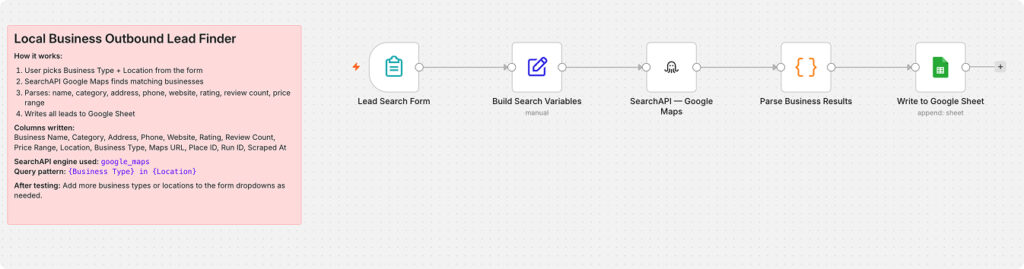
Lead Search Form → Build Search Variables → SearchAPI Google Maps → Parse Business Results → Write to Google Sheet
I kept it linear intentionally. The more complex a workflow is, the more failure points it has — something I learned the hard way from building more elaborate n8n automations. This one is straightforward enough that there’s very little to go wrong, and when something does go wrong, it’s easy to identify exactly where.
Let me walk through each node and the reasoning behind it.
Node 1 — Lead Search Form
An n8n Form Trigger generates a public URL that opens a web form in any browser — no login required.
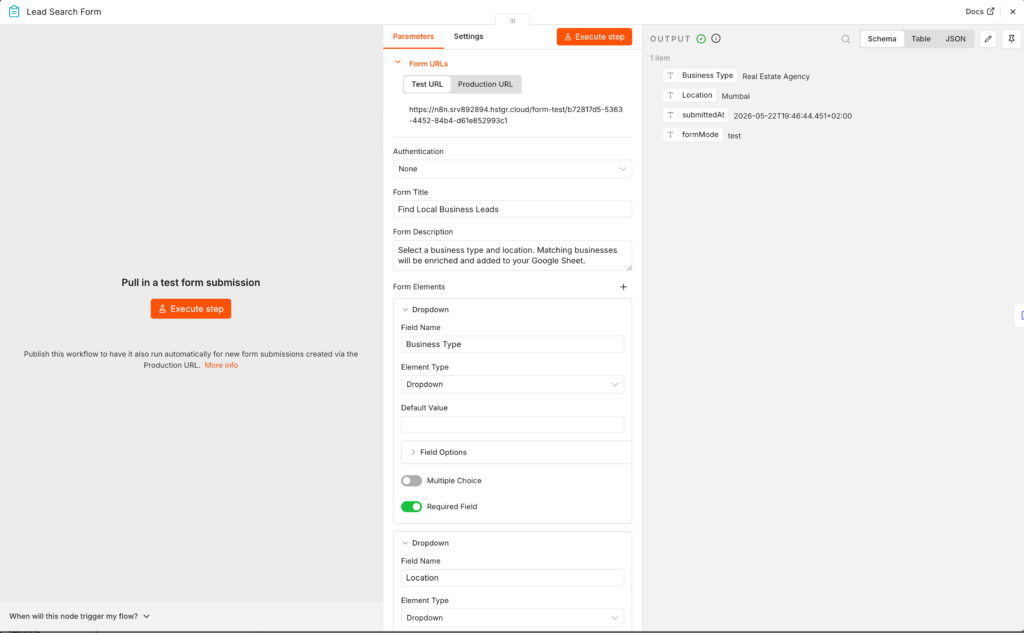
The form has two dropdowns:
Business Type: Gym, Salon, Restaurant, Dental Clinic, Digital Marketing Agency, Law Firm, Real Estate Agency, Accounting Firm, Yoga Studio, Coffee Shop, Coaching Institute, IT Company
Location: Mumbai, Delhi, Bangalore, Hyderabad, Chennai, Pune, Kolkata, Ahmedabad, Noida, Gurgaon, Jaipur, Surat
Both fields are required. Submit the form and the workflow fires immediately.
The reason I used dropdowns rather than free-text inputs is something I learned early in testing. Open text fields produce inconsistent query strings — sometimes the right format, sometimes not — and you end up with searches that return zero results or off-target data. Controlled dropdowns give you combinations I’ve already verified produce consistent results of 15 to 20 businesses per search.
Both lists are easy to extend. Adding “Patna” or “Coimbatore” to locations, or “Physiotherapy Clinic” to business types, requires nothing more than adding a new option to the dropdown. The rest of the workflow doesn’t need to change at all.
Node 2 — Build Search Variables
A Set node that takes the two form inputs and constructs the search query.
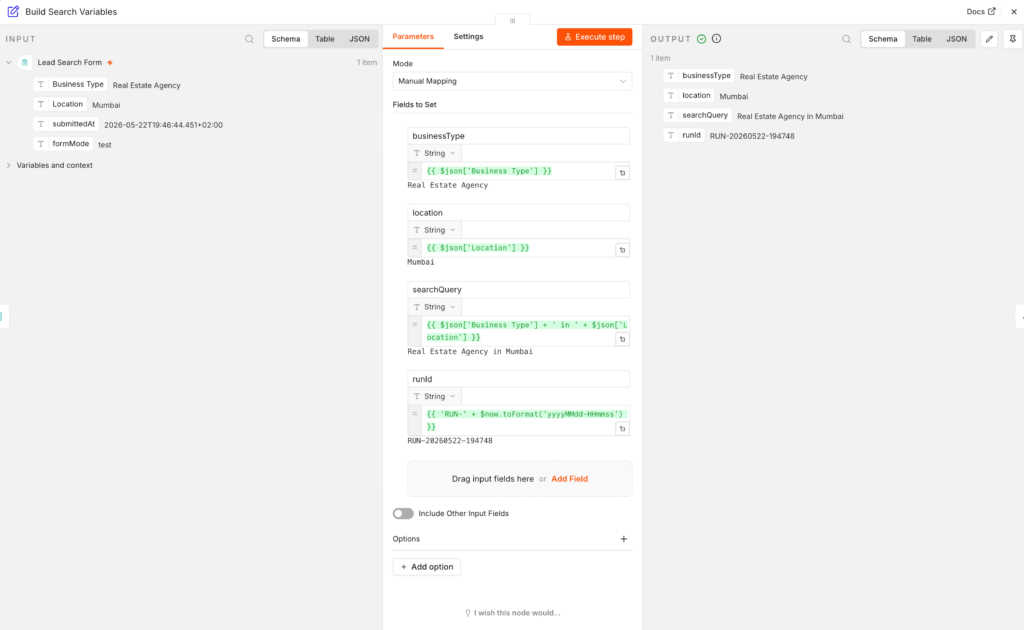
The primary output is straightforward:
searchQuery = "Real Estate Agency in Gurgaon"That format — business type, “in,” location — is exactly how someone would type a local search into Google Maps manually, which is how SearchAPI interprets it best. This node also generates a runId timestamp so I can filter results by batch when running multiple searches across different city and niche combinations.
Simple node, but it’s where the query gets shaped. Worth understanding before moving on.
Node 3 — SearchAPI Google Maps
This is where the actual work happens.
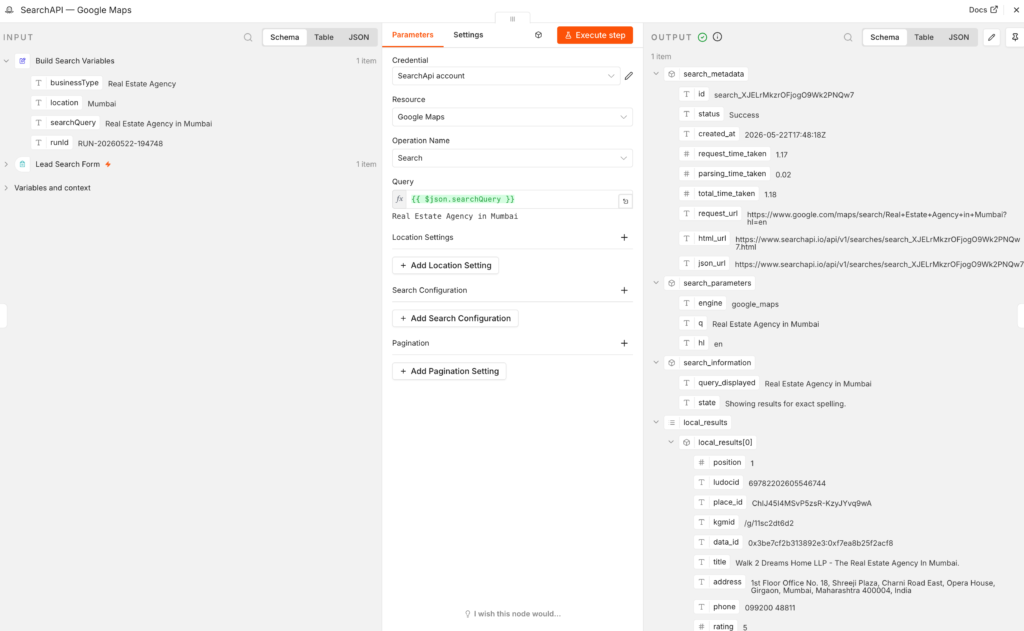
I configured the node using SearchAPI’s Google Maps engine, set it to the Search operation, and passed in the searchQuery expression from the previous node. SearchAPI fires that query against Google Maps and returns a local_results array, where each element is a business.
Here’s the part that genuinely surprised me when I first tested it: one API call returns everything.
If you’ve worked with the Google Places API before, you know it requires at least two separate HTTP requests — a Text Search call to get place IDs, then a Place Details call for each individual business to retrieve phone numbers and websites. For 20 businesses, that’s a minimum of 21 API calls, plus the complexity of chaining them together in your workflow.
SearchAPI collapses all of that into a single call. Name, address, phone, website, rating, reviews, Maps URL, place ID — everything comes back in one response. You can verify this yourself from the SearchAPI Google Maps documentation, which shows the full JSON response structure. That’s not just more efficient; it’s a fundamentally simpler workflow with fewer nodes and none of the rate limiting complexity that comes with per-business API calls.
I compared SearchAPI with SerpAPI during testing — SerpAPI also supports Google Maps and is a solid option. I stayed with SearchAPI because it has a native n8n node. Instead of configuring an HTTP Request node manually and parsing the response yourself, you just select Google Maps from a resource dropdown and you’re done.
Node 4 — Parse Business Results
A Code node that processes the local_results array and maps each business into a flat object with 14 fields ready for the Google Sheet.
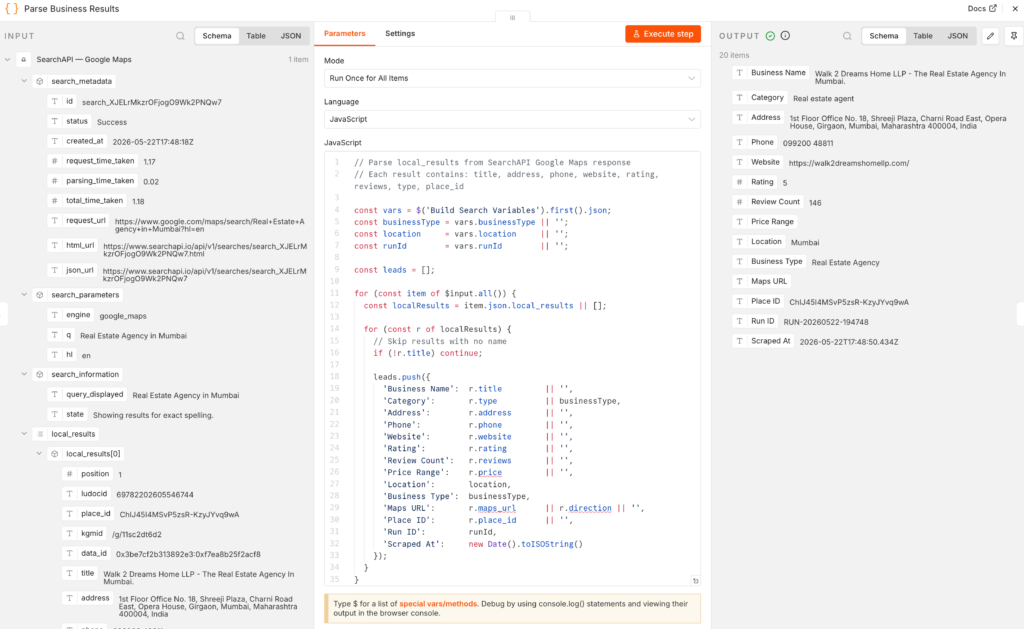
A few things I built into this node that aren’t immediately obvious:
Category accuracy. The type field in the SearchAPI response reflects how Google Maps actually categorizes each business — not just the search term I used. Search for “Real Estate Agency” and you’ll see results categorized as “Real estate consultant,” “Industrial real estate agency,” or “Real estate developer.” Writing Google’s actual category into the sheet is more accurate than just repeating your own search term, and it becomes genuinely useful when you’re filtering your lead list later.
Empty result guard. Google Maps occasionally returns ad placeholders or sponsored results that have no business name in the data. Without checking for this, you’d end up with blank rows polluting your sheet. The node skips any result where the title field is missing.
Array normalization. The form sends clean strings, but I built in handling for array inputs as well — joining them with commas or passing strings through directly — so the workflow is extensible if you want to adapt it later for programmatic input rather than form-based input.
Here’s the full code from this node:
const vars = $('Build Search Variables').first().json;
const businessType = vars.businessType || '';
const location     = vars.location     || '';
const runId        = vars.runId        || '';

const leads = [];

for (const item of $input.all()) {
  const localResults = item.json.local_results || [];

  for (const r of localResults) {
    if (!r.title) continue;

    leads.push({
      'Business Name':  r.title         || '',
      'Category':       r.type          || businessType,
      'Address':        r.address       || '',
      'Phone':          r.phone         || '',
      'Website':        r.website       || '',
      'Rating':         r.rating        || '',
      'Review Count':   r.reviews       || '',
      'Price Range':    r.price         || '',
      'Location':       location,
      'Business Type':  businessType,
      'Maps URL':       r.maps_url      || r.direction || '',
      'Place ID':       r.place_id      || '',
      'Run ID':         runId,
      'Scraped At':     new Date().toISOString()
    });
  }
}

if (leads.length === 0) {
  return [{ json: { error: 'No results found for ' + businessType + ' in ' + location } }];
}

return leads.map(l => ({ json: l }));
Node 5 — Write to Google Sheet
A Google Sheets append node. Every parsed lead becomes a new row.
I used autoMapInputData — n8n automatically matches the field names coming out of the Code node to the column headers in my sheet. The only setup required on the sheet side is making sure row 1 has these exact headers:
Business Name | Category | Address | Phone | Website | Rating | Review Count | Price Range | Location | Business Type | Maps URL | Place ID | Run ID | Scraped AtAfter that, every workflow run appends new rows without touching anything that already exists. Run it for Mumbai gyms on Monday, Bangalore salons on Tuesday — everything accumulates cleanly in one sheet, organized by the Location and Business Type columns.
Running Your First Search
- Import the workflow template into your n8n instance
- Connect your SearchAPI credential — sign up at searchapi.io and select “SearchApi account” from the credential dropdown
- Connect your Google Sheets OAuth2 account
- Select your Google Sheet from the document list and choose the correct tab
- Open the form URL from the Form Trigger node
- Pick a Business Type and Location
- Submit
The form shows a confirmation: “Your lead search is running. Results will appear in your Google Sheet shortly.”
Open your sheet. You should see 15 to 20 new rows within 30 seconds.
How to Actually Use This Data?
Getting the list is step one. How you work with it is where the real leverage is.
Filter before you reach out. The Rating and Review Count columns are more useful than they appear at first. A business with a 4.9 rating and 35 reviews has clearly built something good — but minimal online presence, probably no agency relationship, no ads running. That combination is your highest-value cold outreach target because there’s a clear, demonstrable problem you can help solve.
A business with 500+ reviews likely has an established marketing operation already in place. That’s not a dead end, but it’s a different pitch with different expectations.
Use the Website column as your first filter. Any business with no website listed on Google Maps is an obvious opportunity if you offer digital services. It’s the fastest qualification filter in the sheet.
Use the Place ID for deduplication. Running the same search next week pulls the same businesses again. Before any outreach, filter on Place ID to avoid contacting the same business twice. The Place ID is stable — it doesn’t change even when a business updates its Maps listing.
Group by review count to prioritize outreach:
| Review Count | Signal | Approach |
|---|---|---|
| Under 50 | Early-stage, limited digital footprint | Cold outreach, entry-level offer |
| 50–200 | Growing, some digital awareness | Lead with the specific gap you can close |
| 200–500 | Established, some marketing likely | ROI-driven pitch, specific outcomes |
| 500+ | Mature operation | Different offer, or move on |
Where I’m Taking This Next
The base workflow is deliberately minimal. A few directions I’m actively exploring:
Multi-city campaigns. Wrapping the SearchAPI node in a SplitInBatches loop and feeding it a city list would let you run one search per city automatically. If you want to understand how n8n handles database load from high-volume executions like this, I’ve written about pruning n8n execution data to keep your instance lean.
Email discovery. Once you have websites, you can pipe each URL through a SearchAPI Google search targeting the site’s contact page. This surfaces publicly listed email addresses for a reasonable percentage of businesses without any scraping.
AI-powered lead scoring. Passing the rating, review count, category, and location to an OpenAI node and asking it to score each lead on outreach potential — then writing that score to a new column — turns a flat list into a prioritized pipeline. I’ve covered AI integration patterns with n8n in more depth in the post on deploying local LLMs with Ollama and n8n for anyone who wants to keep the scoring step fully private and offline.
Automated outreach sequences. Instead of (or alongside) writing to Sheets, route high-scoring leads directly to a notification or draft a personalized email per business. n8n connects natively to Gmail, Outlook, Slack, and WhatsApp Business API. I’ve built a working version of this kind of multi-channel automation — the n8n marketing automation workflows post has patterns you can adapt directly.
LinkedIn outreach layer. For agencies targeting business owners, routing high-scoring leads into a LinkedIn outreach sequence is worth exploring. There are real API limitations to navigate in 2025 — I’ve covered the workarounds in detail in the LinkedIn automation with n8n and OpenAI guide.
Common Questions about SearchAPI
How many results does one search return?
Typically 15 to 20 businesses per search, matching what Google Maps shows on the first page of local results. SearchAPI supports pagination if you need to go deeper.
Do I need to know how to code to set this up?
No. The only Code node in the workflow is pre-written and doesn’t need to be modified. Everything else is configuration through n8n’s visual interface. If you’re completely new to n8n, the n8n review and walkthrough is a good starting point.
What if the search returns no results?
Usually this means the query was too specific or the business type has limited Google Maps coverage in that city. Try broadening the business type — “Agency” instead of “Digital Marketing Agency” — or targeting a larger city.
Where should I host my n8n instance?
If you’re just getting started, the comparison of n8n self-hosting options covers nine platforms with cost breakdowns, from budget-friendly shared hosting to enterprise AWS setups.