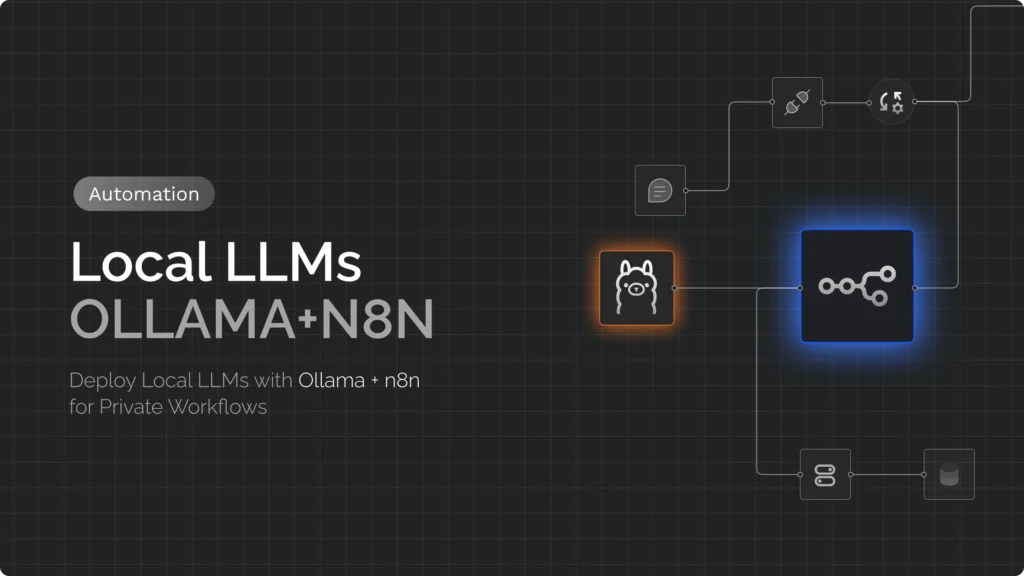
In an era of widespread data harvesting, regulatory overhead, and privacy concerns, relying solely on API-based large language model (LLM) solutions such as OpenAI’s GPT-4 or Google’s Gemini isn’t always viable, especially for sensitive workflows. Whether you’re building custom automations, integrating internal tools, or orchestrating data flow across critical systems, data residency and control are non-negotiables for many enterprises. Running local LLMs with Ollama and connecting them to your automations keeps that data on hardware you control.
Updated October 2026: several things in the original version of this guide no longer work or are unsafe, so I rewrote it. The llama2 model it used is from 2023 and long superseded. The Docker Compose file set N8N_BASIC_AUTH_* variables, but n8n removed basic-auth support in version 1.0, so those lines did nothing and left the instance relying on whatever login it started with. n8n now has native Ollama Chat Model and Embeddings Ollama nodes, so you no longer need to hand-build HTTP requests for the common case. And the Docker-to-host networking advice was incomplete (Linux needs an extra flag). All of this is corrected below and checked against the current n8n and Ollama documentation.
This guide shows how to run open-weight LLMs on your own machine or server using Ollama, and connect them to n8n workflow automations. n8n is a source-available automation platform you can self-host, so the whole pipeline (trigger, prompt, model, result) can run without sending data to a third-party AI API.
An honest note on trade-offs: local models you can run on a laptop or a single server are smaller than the largest hosted models, so on hard reasoning, long-context or highly specialised tasks they usually do worse. They shine for summarising, classifying, extracting, rewriting and drafting, especially where privacy, cost predictability or offline operation matter more than peak quality. Plan to test on your own data before committing.
This isn’t just a quickstart. We’ll explore:
- How to install Ollama and run a model locally
- How to connect n8n to Ollama, including the Docker networking that trips most people up
- How to build a working prompt-to-answer workflow with n8n’s native nodes (and with a raw HTTP request when you need more control)
- How to test, secure and tune the setup
What a local setup gives you:
- Data stays on your infrastructure: prompts and documents never leave your network, which helps with compliance and sensitive material.
- Predictable costs and behaviour: no per-token fees, no rate limits from a provider, and a model that doesn’t change underneath you unless you update it. You pay in hardware and electricity instead.
- Offline and air-gapped use: once a model is downloaded, it runs without an internet connection.
- Flexibility: swap models per task, fine-tune or quantize them, and mix them with hosted models in the same workflow when you need more quality.
Prerequisites
You need a machine that can run Ollama and an n8n instance that can reach it. They can be the same machine.
1. Hardware
- OS: macOS, Windows or Linux (Apple Silicon, x86_64 and ARM64 are all supported).
- Memory: the model has to fit in memory (VRAM on a GPU, or RAM, or unified memory on Apple Silicon), with headroom for context. As a guide from the Ollama library:
llama3.2:3bis a 2.0 GB download,qwen3:8bis 5.2 GB andqwen3:14bis 9.3 GB. An 8 GB machine is comfortable with models around 3B parameters; 16 GB handles 7–8B models; larger models need more. - Speed: a supported GPU (or Apple Silicon) makes responses several times faster than CPU-only, which can be slow for anything above a few billion parameters.
- Storage: a few GB per model, more if you keep several.
2. Install Ollama
Ollama runs open-weight models such as Llama, Qwen, Gemma and Mistral with minimal setup. Download the installer for your OS from ollama.com/download, or on Linux run the official install script:
curl -fsSL https://ollama.com/install.sh | shVerify the install:
ollama --versionOn macOS and Windows the app starts the Ollama server in the background automatically; on Linux the installer sets it up as a service. Either way, the server listens on http://localhost:11434. By default it binds only to 127.0.0.1, so other machines (and Docker containers) cannot reach it until you change that, which matters in the networking section below.
3. Install n8n
n8n recommends Docker for most self-hosting. Create a persistent volume and start n8n (this is the command from n8n’s own docs; replace the timezone):
docker volume create n8n_data

docker run -it --rm \
  --name n8n \
  -p 5678:5678 \
  --add-host host.docker.internal:host-gateway \
  -e GENERIC_TIMEZONE="Europe/London" \
  -e TZ="Europe/London" \
  -v n8n_data:/home/node/.n8n \
  n8nio/n8n
The --add-host line is what lets the container reach services on your host machine as host.docker.internal. Docker Desktop on macOS and Windows adds that name automatically, but on Linux you must add it yourself. Drop --rm and add -d if you want it to run in the background. If you prefer Docker Compose, here is the equivalent:
# docker-compose.yml
services:
  n8n:
    image: n8nio/n8n
    ports:
      - "5678:5678"
    environment:
      - GENERIC_TIMEZONE=Europe/London
      - TZ=Europe/London
    extra_hosts:
      - "host.docker.internal:host-gateway"
    volumes:
      - n8n_data:/home/node/.n8n
    restart: unless-stopped

volumes:
  n8n_data:
Then run docker compose up -d. Open http://localhost:5678 and complete the first-run setup, which creates the owner account. Don’t look for basic-auth settings: older guides (including the first version of this one) set N8N_BASIC_AUTH_USER and N8N_BASIC_AUTH_PASSWORD, but n8n removed basic-auth support in 1.0, and there is no supported way to disable the login screen. Authentication is the owner account you create. See n8n’s Docker Compose installation docs for production options such as PostgreSQL. n8n releases new minor versions most weeks, so pin a specific version tag for anything you rely on.
4. Choose a model
The Ollama library has hundreds of models, and the popular ones change quickly, so check ollama.com/library for the current list. For this guide we use llama3.2 (3B parameters, a 2.0 GB download), small enough for almost any modern laptop. If you have more memory, try qwen3:8b or another 7–8B model for noticeably better answers.
ollama pull llama3.2Step-By-Step Implementation
This section loads a model, confirms the server works, and then wires it into n8n.
Step 1: Run a model with Ollama
First confirm the model runs locally:
ollama run llama3.2Paste a prompt such as:
What are some ways to improve API performance?You should get a text answer. Type /bye (or press Ctrl+D) to exit.
Step 2: Check Ollama’s REST API
Ollama exposes an HTTP API, and that is what n8n talks to. On macOS, Windows and a standard Linux install the server is already running, so you normally don’t need to start it yourself. (If you installed manually and nothing is listening, run ollama serve.) Check that it is up:
curl http://localhost:11434It replies Ollama is running. Now send a real request to the /api/generate endpoint:
curl http://localhost:11434/api/generate -d '{
  "model": "llama3.2",
  "prompt": "List some n8n use cases involving AI",
  "stream": false
}'
With "stream": false you get a single JSON object. The generated text is in the response field, alongside done and timing and token-count metrics. (Leave out stream: false and the default is a stream of partial responses.) For multi-turn conversations, Ollama also offers an /api/chat endpoint that takes a list of messages.
Step 3: Connect n8n to Ollama
n8n has native nodes for Ollama, which is the recommended way to use it. You need an Ollama credential first, and its Base URL depends on where n8n and Ollama run. This is the part that most often goes wrong, so here is the matrix from n8n’s docs:
| Where n8n runs | Where Ollama runs | Base URL in the n8n credential |
|---|---|---|
| Directly on the host (npm, desktop) | On the host | http://localhost:11434 (or http://127.0.0.1:11434 if you hit an IPv6 error) |
| In Docker | On the host | http://host.docker.internal:11434, and Ollama must listen on all interfaces (see below). On Linux, start the n8n container with --add-host host.docker.internal:host-gateway. |
| On the host | In Docker | http://localhost:11434, if you published the port with -p 11434:11434 |
| In Docker | In a separate Docker container | The container name, for example http://my-ollama:11434, with both containers on the same Docker network |
If Ollama is on the host and n8n is in Docker, Ollama must accept connections from the container, not just from 127.0.0.1. Set the OLLAMA_HOST environment variable to bind to all interfaces (OLLAMA_HOST=0.0.0.0:11434) and restart Ollama. Be aware that this exposes the API to your whole network, which has security implications covered under “Authentication” below. The official Ollama Docker image (docker run -d -v ollama:/root/.ollama -p 11434:11434 --name ollama ollama/ollama) is already configured to listen on all interfaces. See n8n’s Ollama common-issues page for more detail, including the connect ECONNREFUSED ::1:11434 error.
Build the workflow
- Add a trigger: a Chat Trigger for a chat window, or a Manual, Webhook, Schedule or app trigger depending on your use case.
- Add a Basic LLM Chain node. Set Source for Prompt to Define below and write your prompt, using an expression like
{{ $json.chatInput }}to pull in the user’s text. In its Chat Messages option you can add a System message to set the model’s role. - Under the chain’s Model connector, add an Ollama Chat Model sub-node. Select your Ollama credential (Base URL from the table above) and choose the model from the Model dropdown (
llama3.2, or whatever you pulled). Under Options, a low Sampling Temperature (around 0.2) gives more consistent output for extraction and summarisation. - Run the workflow. The chain’s answer comes back in a
textfield (check the node’s output panel to confirm the field name in your version).
Two things to know. First, n8n’s own page for the Ollama Chat Model node still lists the 2023 Llama 2 models in its parameter docs, but the node in practice works with the models available on your Ollama server, so pick whichever you’ve pulled. Second, if you want the model to use tools (an AI Agent node that calls other nodes), choose a model that supports tool calling; the Ollama library marks these, and not every small model does. For retrieval-augmented setups, n8n also has an Embeddings Ollama node, so the entire RAG knowledge-base assistant we built in n8n can run locally with Ollama embeddings and a self-hosted vector store.
Alternative: call the API with an HTTP Request node
Use the raw API when you need control the native node doesn’t expose, such as keep_alive, a JSON format constraint, or custom options. Add an HTTP Request node with:
- Method: POST
- URL:
http://host.docker.internal:11434/api/generate(or the URL that matches your setup from the table above) - Send Body: on, body type JSON
{
  "model": "llama3.2",
  "prompt": "={{ $json.prompt }}",
  "stream": false
}
Then read the model’s text from the response field of the node’s output. A subsequent Edit Fields (Set) or Code node can extract it into a clean field (these were called “Set” and “Function” nodes in older n8n versions).
Step 4: Expand the workflow
Once a prompt-to-answer path works, you can drop it into larger workflows:
- Gmail or Outlook trigger, then summarise or classify each incoming email.
- Form submission, then draft a reply or suggestion for a human to approve.
- Schedule trigger, then read RSS feeds, summarise the items, and post the digest to Slack.
- Webhook, then run an extraction step that returns structured JSON to another system.
For PDFs and other files, use n8n’s Extract From File node to turn them into text before the prompt. If a document is longer than the model’s context window, split it into chunks (or use a vector store, as in our RAG guide) rather than pasting it whole.
Testing & Output
Case 1: Happy path
Send a known input and check the output is sensible:
Prompt: "Give 3 ways Kafka improves system resiliency"You should get a coherent answer about asynchronous messaging, replication and decoupling. Exact wording will differ between runs unless you set the temperature to 0.
Case 2: Empty or malformed prompt
An empty prompt wastes a model call and returns nonsense. Validate input before the model node, for example with an If node that checks the text is at least a few characters long, or in a Code node:
const prompt = $input.first().json.chatInput ?? "";
if (prompt.trim().length < 5) {
  throw new Error("Prompt is too short");
}
return $input.all();
Case 3: Ollama not reachable
If n8n can’t reach Ollama you will see errors like ECONNREFUSED or ENOTFOUND. Check, in order: is Ollama running (curl http://localhost:11434)? Is the Base URL correct for your Docker setup (table above)? If you are on Linux with n8n in Docker, did you add --add-host host.docker.internal:host-gateway? If the host-side Ollama is bound only to 127.0.0.1, set OLLAMA_HOST as described earlier. And if you see ECONNREFUSED ::1:11434, use http://127.0.0.1:11434 instead of localhost.
Validation Tips
- Look at each node’s output in n8n’s Executions view to see exactly what the model received and returned.
- Test concurrency by firing several requests at once, and watch response times. (By default Ollama handles one request per model at a time and queues the rest, as explained below.)
- Use a fixed set of five or ten test prompts and re-run it whenever you change the model, prompt or temperature, so you can compare outputs.
Advanced Configuration
Model Switching at Runtime
Set the model dynamically from the input, so different workflow branches can use different models. In the HTTP Request body use an expression such as:
"model": "={{ $json.selectedModel || 'llama3.2' }}"Any model you reference must already be pulled on the Ollama server (ollama pull <name>), and switching between several large models makes Ollama unload and reload them, which is slow. Ollama keeps a model in memory for 5 minutes after the last request by default; the OLLAMA_KEEP_ALIVE setting (or keep_alive per request) changes that.
Concurrency and scaling
These Ollama environment variables, from its FAQ, control how requests are handled:
OLLAMA_NUM_PARALLEL: how many requests a loaded model handles at once (default 1). Raising it uses more memory.OLLAMA_MAX_LOADED_MODELS: how many models can be held in memory at the same time (default 3 per GPU, or 3 on CPU).OLLAMA_MAX_QUEUE: how many requests can wait before Ollama starts rejecting them (default 512).
For bursty workloads, let n8n or a queue (Redis, RabbitMQ) buffer requests instead of firing them all at Ollama at once. For more throughput, run Ollama on a dedicated machine with a GPU and point n8n at it. If you need to serve many users concurrently, a dedicated inference server designed for batching may be a better fit than Ollama.
Authentication for Ollama
Ollama has no built-in authentication or TLS, and by default it only listens on 127.0.0.1, which is the safe setting. The moment you bind it to 0.0.0.0 (needed for Docker or other machines), anyone who can reach that port can use your models and consume your hardware. So:
- Restrict access with a firewall so only the n8n host can reach port 11434.
- Put it behind a reverse proxy (NGINX, Caddy, Traefik) that adds HTTPS and authentication. n8n’s Ollama credential has an optional API Key field that is sent as a Bearer token, for exactly this kind of authenticated proxy.
- Or keep it off the public network entirely and connect over a private network such as Tailscale or a VPN.
- Never publish port 11434 directly to the internet.
Monitoring & Debugging
- Run Ollama with verbose logging:
OLLAMA_DEBUG=1 ollama serve - Check n8n’s logs:
docker logs n8n(using your container’s name) - Check what is loaded and how much memory it uses:
ollama ps
If your own machine doesn’t have a capable GPU, you can rent one by the hour or by the second. See Runpod vs Vast.ai and Runpod vs Lambda to compare GPU cloud options.
Conclusion
Ollama and n8n make a practical combination for private AI automation: Ollama runs the model on hardware you control, and n8n wires it into triggers, data sources and business logic. With the native Ollama nodes, a working prompt-to-answer workflow is a few nodes, and the same pattern extends to RAG, classification and extraction pipelines.
The things to get right are the ones that trip most setups: choose a model that fits your memory, set the credential’s Base URL correctly for your Docker layout, keep Ollama off the open network, and test quality on your own data before relying on it. Where a local model isn’t good enough for one step, you can mix in a hosted model for just that step.
Next steps:
- Try other models, such as an 8B Qwen or Gemma model, and compare them on your test prompts.
- Add local embeddings (Embeddings Ollama) and a vector store such as Qdrant to build a private RAG assistant: RAG knowledge base in n8n.
- Set up a browser front end for the same Ollama server with Open WebUI.
- Move to Postgres-backed n8n and a dedicated GPU host once the workflow is something people rely on.
FAQs
Can I use Ollama over HTTPS?
Ollama’s built-in server doesn’t provide TLS. Put it behind a reverse proxy such as NGINX or Caddy that terminates HTTPS, and restrict the Ollama port with a firewall so only the proxy can reach it. n8n’s Ollama credential accepts an optional API key, sent as a Bearer token, for authenticated proxies.
How do I handle several requests at once with limited RAM?
By default Ollama processes one request per model at a time and queues the rest (up to 512). You can raise OLLAMA_NUM_PARALLEL if you have memory to spare, but each extra parallel request uses more. For bursty traffic, queue requests in n8n or an external queue so only a few reach Ollama at once, or run Ollama on a larger or second machine.
Which models are best for summarisation or classification?
The best choice changes every few months, so check ollama.com/library and test on your own data. In general, a 7–8B instruction-tuned model from a current family (Qwen, Llama, Gemma, Mistral) handles summarising, classifying and extracting well, and 3B-class models like llama3.2 work for lighter tasks. Pull a candidate with ollama pull <name>, run your five or ten test prompts through each, and pick on results, not benchmarks.
How can I feed PDFs or files into the prompt?
Use n8n’s Extract From File node to convert the file to text, then reference that text in your prompt. If it exceeds the model’s context window, split it into chunks and process them separately (for example, summarise each chunk and then summarise the summaries), or index it in a vector store and retrieve only the relevant parts, as in our RAG guide.
The output is garbled or low quality. How do I fix it?
First check you’re using an instruction-tuned model and the chat-style interface (the Ollama Chat Model node or /api/chat), which applies the model’s proper chat template, rather than a raw prompt format. Then try a lower temperature, add a clear system message and a short example of the output you want, and try a larger model. Very small models simply have limits.
n8n can’t connect to Ollama when I run n8n in Docker. What’s wrong?
Inside a container, localhost means the container itself, not your machine. Use http://host.docker.internal:11434 as the Base URL, add --add-host host.docker.internal:host-gateway to the n8n container on Linux, and make sure Ollama listens on an interface the container can reach (OLLAMA_HOST=0.0.0.0:11434). Remember to firewall that port.
Does n8n still support basic auth for the editor?
No. Basic auth and JWT authentication were removed in n8n 1.0, and the old N8N_BASIC_AUTH_* variables do nothing. Authentication is the owner account created on first run, plus any users you invite. Put n8n behind a reverse proxy if you want an extra layer.